A browser profile is a separate environment inside a web browser that keeps its own settings, cookies, browsing history, storage, extensions, and other browser data.
Instead of using one browser environment for everything, profiles let you create separate spaces for different users, accounts, projects, or workflows.
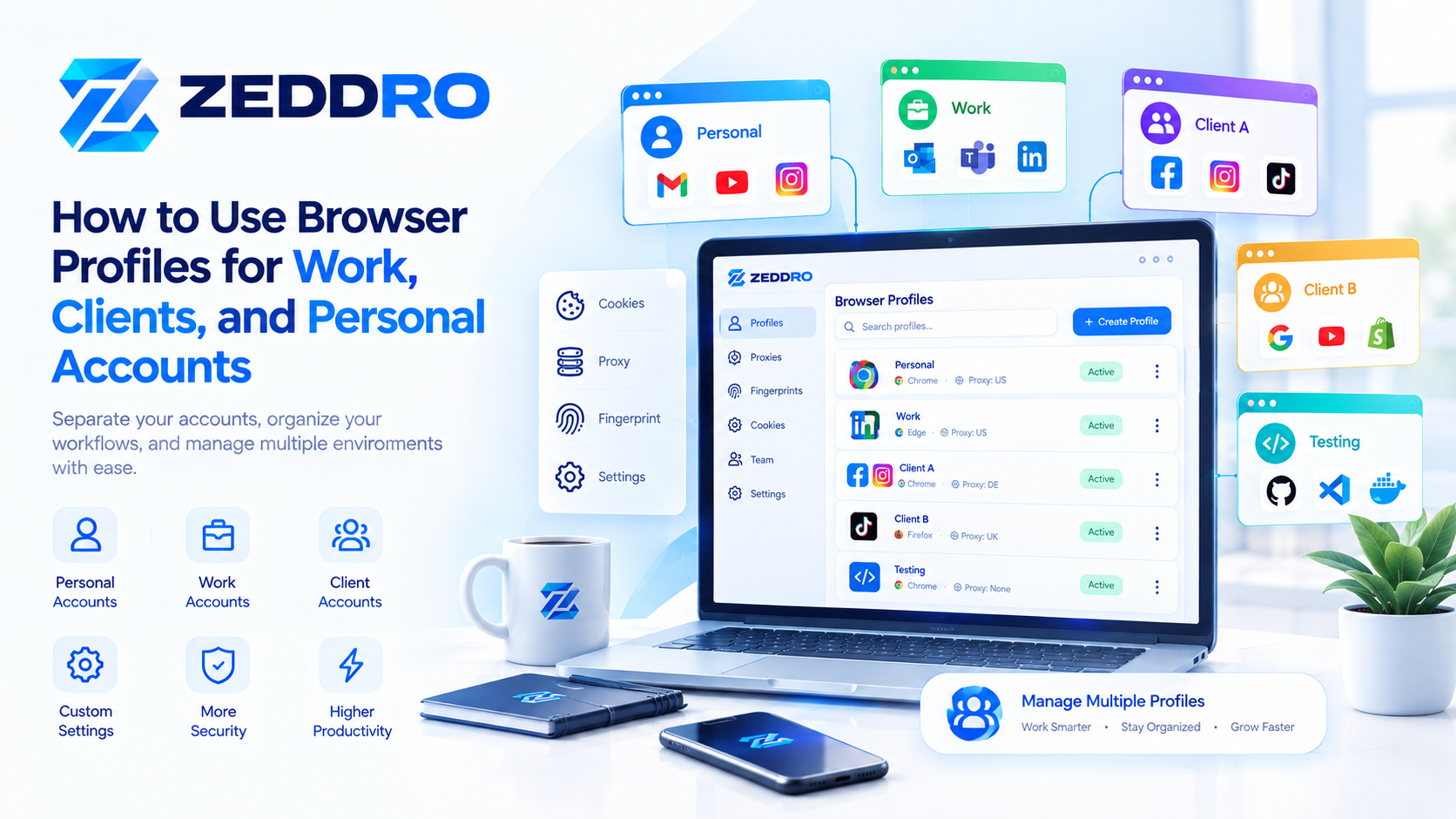
For example, someone might use one browser profile for personal browsing, another for work, and another for a specific client or project. Each profile can maintain its own browser state without mixing it with the others.
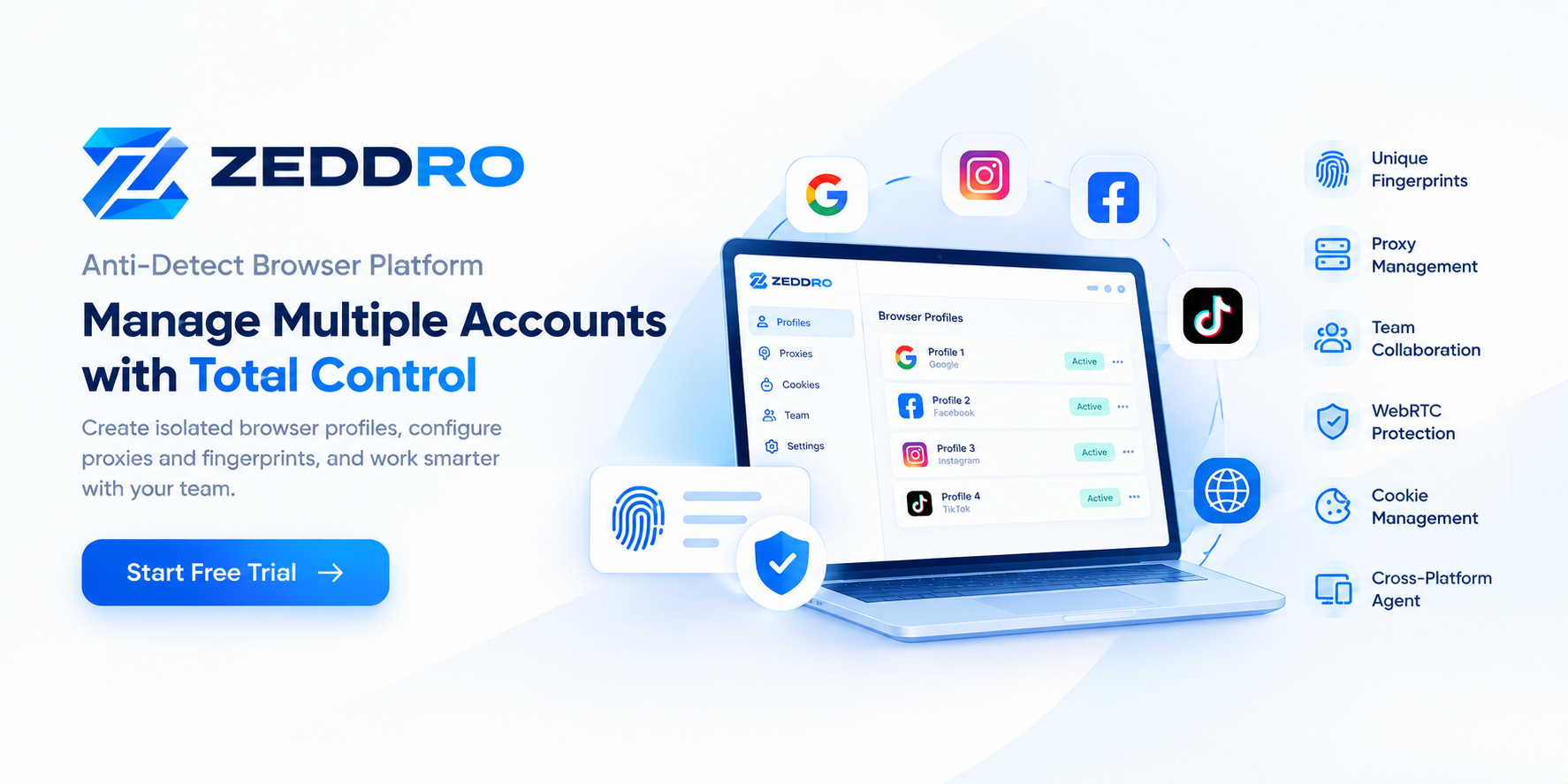
This makes browser profiles particularly useful for multi-account management, team workflows, testing, account separation, and organized web work.
But a browser profile is more than simply opening another browser window. Understanding what a profile actually isolates—and what it does not—is important when working with multiple online accounts.
What Is a Browser Profile?
A browser profile is a dedicated set of browser data and configuration associated with a particular environment.
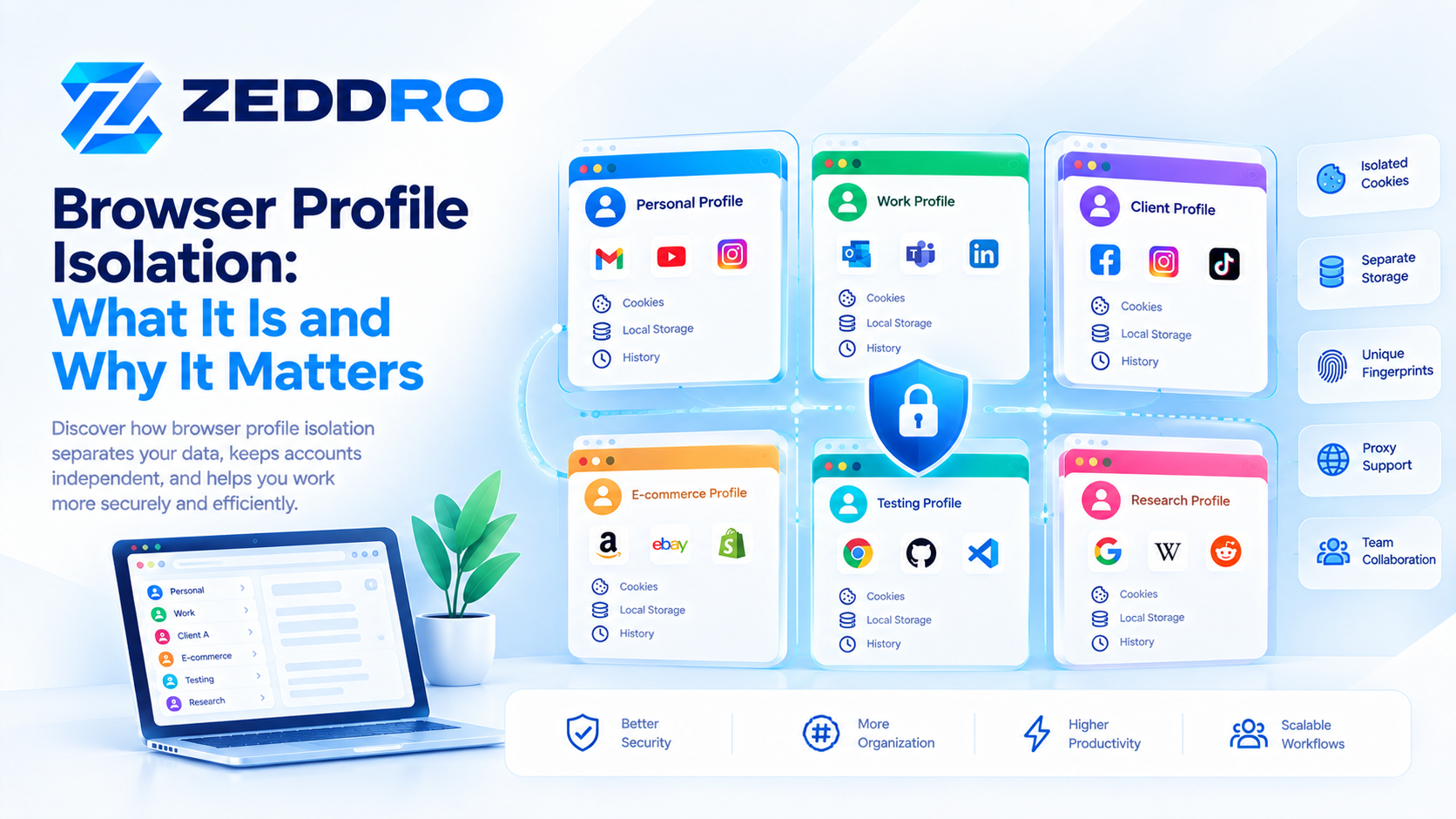
Depending on the browser, a profile can contain information such as:
- Cookies
- Browsing history
- Cached resources
- Local storage
- IndexedDB data
- Saved preferences
- Extensions
- Bookmarks
- Autofill information
- Site permissions
- Session information
- Other browser-specific storage
The important idea is separation of browser state.
If you sign in to a website using Profile A, the login state is generally associated with that profile's stored browser data. Opening another profile gives you a separate browser environment with its own stored state.
A simple example
Imagine you have three browser profiles:
Profile 1 — Personal
- Personal email
- Personal browsing
- Personal bookmarks
- Personal cookies
Profile 2 — Client A
- Client-specific accounts
- Client bookmarks
- Client extensions
- Client-specific sessions
Profile 3 — Research
- Research websites
- Testing accounts
- Development tools
- Separate browsing history
The profiles help prevent these environments from becoming one large collection of mixed browser data.
How Do Browser Profiles Work?
At a high level, a browser profile works by giving a browser a separate data environment.
When the browser creates or opens a profile, it maintains profile-specific information in its own storage area.
A simplified model looks like this:
Browser
→ Profile A
→ Cookies
→ Local Storage
→ History
→ Extensions
→ Preferences
and separately:
Browser
→ Profile B
→ Cookies
→ Local Storage
→ History
→ Extensions
→ Preferences
The exact implementation varies between browsers, but the principle is similar: different profiles maintain different browser state.
This is why signing into an account in one profile does not normally cause the same login session to automatically appear in another profile.
What Does a Browser Profile Separate?
Browser profiles can separate several important categories of browser data.
1. Cookies
Cookies allow websites to store information in the browser.
They can be used for purposes such as:
- Authentication
- Session management
- Preferences
- Shopping carts
- Site functionality
- Analytics
Because cookies are associated with a browser's stored site data, separate profiles can maintain separate cookie environments.
For example:
Profile A
example.com → logged-in session A
Profile B
example.com → logged-in session B
The two profiles can therefore maintain different sessions for the same website.
2. Local Storage
Websites can also store information through mechanisms such as localStorage.
Unlike traditional cookies, local storage is designed for persistent client-side data associated with an origin.
A separate browser profile can maintain its own local storage, helping keep application state separated between profiles.
This matters for modern web applications because websites frequently use multiple browser-storage mechanisms rather than cookies alone.
3. Browsing History
Each profile can maintain its own browsing history.
This is useful when different environments serve different purposes.
For example:
- Personal profile → personal websites
- Work profile → business websites
- Development profile → documentation and testing environments
Keeping history separate also makes it easier to understand what activity belongs to which workflow.
4. Extensions
Browser profiles can have their own extension configurations.
This can be useful when different tasks require different browser tools.
For example, a developer might maintain:
Development Profile
- Developer tools
- Testing extensions
- API utilities
while using:
Personal Profile
- Password manager
- Productivity extensions
- Reading tools
Extension behavior depends on the browser and its profile implementation, but profile separation can make managing these environments considerably easier.
5. Preferences and Permissions
Profiles can also maintain separate settings and website permissions.
These may include:
- Notification permissions
- Camera permissions
- Microphone permissions
- Site-specific preferences
- Appearance settings
- Browser configuration
This allows different profiles to be configured around different workflows.
Browser Profiles vs Browser Windows
A common misconception is that opening another browser window creates another browser profile.
It does not.
A window is simply another interface window inside the same browser environment.
A profile is a separate browser-data environment.
For example:
Two windows in the same profile
Profile A
├── Window 1
├── Window 2
└── Window 3
All three windows generally share the same profile's browser state.
Two separate profiles
Profile A
├── Window 1
└── Window 2

Profile B
├── Window 1
└── Window 2
Profile A and Profile B maintain separate browser state.
This distinction becomes especially important when managing multiple accounts.
Browser Profile vs Incognito Mode
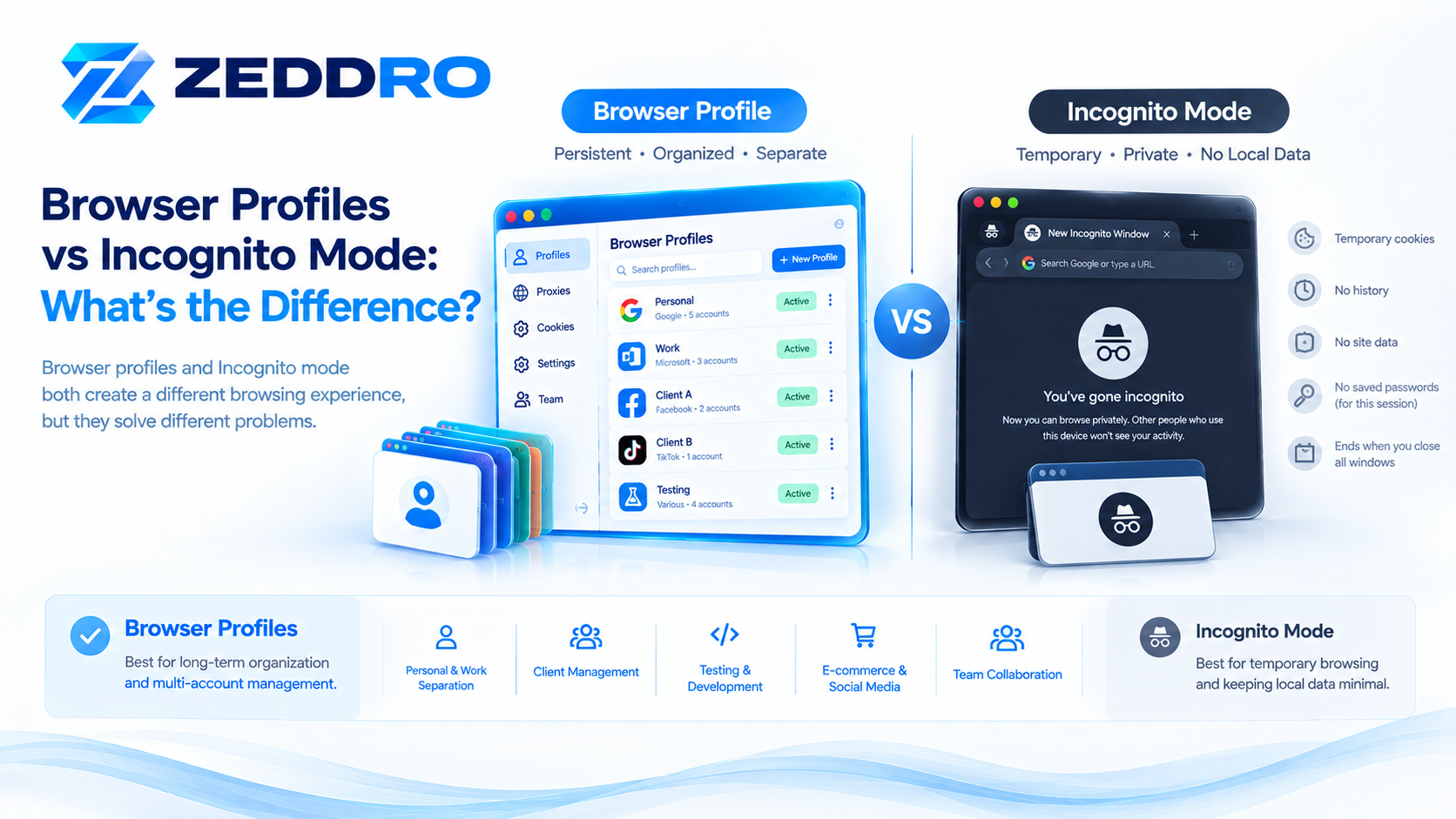
Browser profiles and private/incognito windows solve different problems.
Incognito Mode
Private browsing is primarily designed to reduce persistent local browsing data after the private session ends.
Depending on the browser, information such as browsing history and cookies created during the private session may be discarded when all private windows are closed.
However, private browsing does not mean that the browser becomes a completely separate digital environment.
It also does not automatically hide your IP address or make you anonymous online.
Browser Profile
A browser profile is designed for persistent separation.
Its data can remain available between sessions:
- Cookies
- Preferences
- History
- Extensions
- Storage
- Bookmarks
- Site permissions
Therefore:
Incognito = temporary private browsing session
Profile = persistent browser environment
They serve different purposes.
Why Use Multiple Browser Profiles?
There are many legitimate reasons to use multiple browser profiles.
1. Managing Multiple Work Accounts
People often have several accounts for professional reasons.
For example:
- Multiple company accounts
- Different client accounts
- Separate business identities
- Different administrative accounts
Profiles can help keep these sessions organized.
2. Separating Personal and Professional Browsing
One of the simplest use cases is separating personal and professional activity.
For example:
Personal Profile
- Personal email
- Shopping
- Social networks
- Personal bookmarks
Work Profile
- Business email
- CRM
- Analytics
- Project management tools
- Work-related services
This separation reduces accidental mixing of accounts and browser data.
3. Client Management
Agencies and freelancers frequently work with multiple clients.
A separate profile for each client can provide a clearer organizational structure.
For example:
Client A
├── Client accounts
├── Client bookmarks
└── Client tools

Client B
├── Client accounts
├── Client bookmarks
└── Client tools
This can make switching between projects easier and reduce the chance of using the wrong account.
4. Web Development and Testing
Browser profiles can also be useful for developers.
A testing profile can contain:
- Development extensions
- Testing cookies
- Experimental settings
- Test accounts
- Development websites
This keeps testing activity separate from a normal browsing environment.
5. Account Separation
When multiple accounts belong to different purposes, maintaining separate browser sessions can simplify account management.
For example, instead of repeatedly logging out and logging back in:
Profile A → Account A

Profile B → Account B

Profile C → Account C
Each profile can maintain its own session state.
Do Browser Profiles Change Your Browser Fingerprint?
Not necessarily.
This is an important distinction.
A standard browser profile primarily separates stored browser state. It does not automatically create a completely different hardware or browser fingerprint.
A browser fingerprint can include observable characteristics such as:
- Browser information
- Operating system characteristics
- Screen properties
- Canvas behavior
- WebGL characteristics
- Audio processing characteristics
- Fonts
- Language
- Time zone
- Navigator properties
- Client Hints
- Other browser-exposed signals
Creating another ordinary browser profile does not automatically mean all of these characteristics become different.
For example:
Profile A
Cookies: A
Storage: A
History: A
Fingerprint-related signals: potentially similar

Profile B
Cookies: B
Storage: B
History: B
Fingerprint-related signals: potentially similar
This is one of the most important differences between browser profile isolation and fingerprint management.
Browser Profiles and Fingerprint Management
Advanced browser-profile platforms can go beyond ordinary browser profiles.
Instead of only separating cookies and storage, they may provide controls over additional browser-environment characteristics.
For example, a platform may manage:
- Canvas behavior
- WebGL characteristics
- AudioContext behavior
- Navigator properties
- Client Hints
- Fonts
- Screen-related properties
- WebRTC behavior
The goal should be to create a coherent and controlled browser environment, rather than simply changing individual values randomly.
This connects directly to the concept of browser fingerprint consistency.
If different browser signals contradict one another, changing more values does not necessarily make an environment better.
For a deeper explanation, see our article:
[Browser Fingerprint Consistency: Why It Matters]
A fingerprint is a relationship between multiple observable signals—not simply one identifier.
Browser Profiles and Cookies: What's the Connection?
Browser profiles and cookies are closely related, but they are not the same thing.
A useful way to think about them is:
Profile = the environment
Cookies = one type of stored state inside that environment
For example:
Browser Profile
│
├── Cookies
├── Local Storage
├── IndexedDB
├── History
├── Preferences
├── Extensions
└── Permissions
This explains why deleting a cookie is not equivalent to deleting an entire browser profile.
A profile can contain many other types of information.
Likewise, changing profiles can provide a much broader separation than simply deleting individual cookies.
Browser Profiles vs Cookies
| Feature | Browser Profile | Cookies |
|---|---|---|
| Separate environment | Yes | No |
| Stores login/session state | Yes, through stored data | Yes |
| Stores browsing history | Yes | No |
| Stores extensions | Often | No |
| Stores browser preferences | Yes | No |
| Stores site-specific data | Yes | Yes |
| Can contain local storage | Yes | No |
| Designed for persistent separation | Yes | No |
| Represents the entire browser environment | Yes | No |
The key point is that cookies are one component of browser state, while a profile represents a broader browser environment.
Browser Profiles vs IP Addresses
A browser profile also does not automatically change your IP address.
An IP address represents a network addressing context, while a browser profile primarily controls browser-side state and configuration.
For example:
Profile A
   ↓
Browser environment A
   ↓
Network connection
   ↓
IP address
and:
Profile B
   ↓
Browser environment B
   ↓
Network connection
   ↓
IP address
Both profiles can potentially use the same network connection and therefore the same public IP address.
If a different network route is required for a legitimate use case, proxy configuration is a separate layer.
This distinction is important:
Profile ≠ IP address
Cookie ≠ IP address
Fingerprint ≠ IP address
They are different types of information.
For a detailed comparison, see:
[Browser Fingerprint vs IP Address: What's the Difference?]
Can Multiple Browser Profiles Use the Same Website?
Yes.
A browser can have multiple profiles that access the same website while maintaining separate stored browser sessions.
For example:
Profile A → example.com → Account A

Profile B → example.com → Account B

Profile C → example.com → Account C
This can be useful when the accounts are legitimately separate—for example, different clients, business entities, testing environments, or organizational roles.
However, whether a website permits multiple accounts and how it treats them depends on that website's own policies.
Browser profiles are an organizational and isolation mechanism; they do not override a website's terms or account policies.
What Is Multi-Account Browser Management?
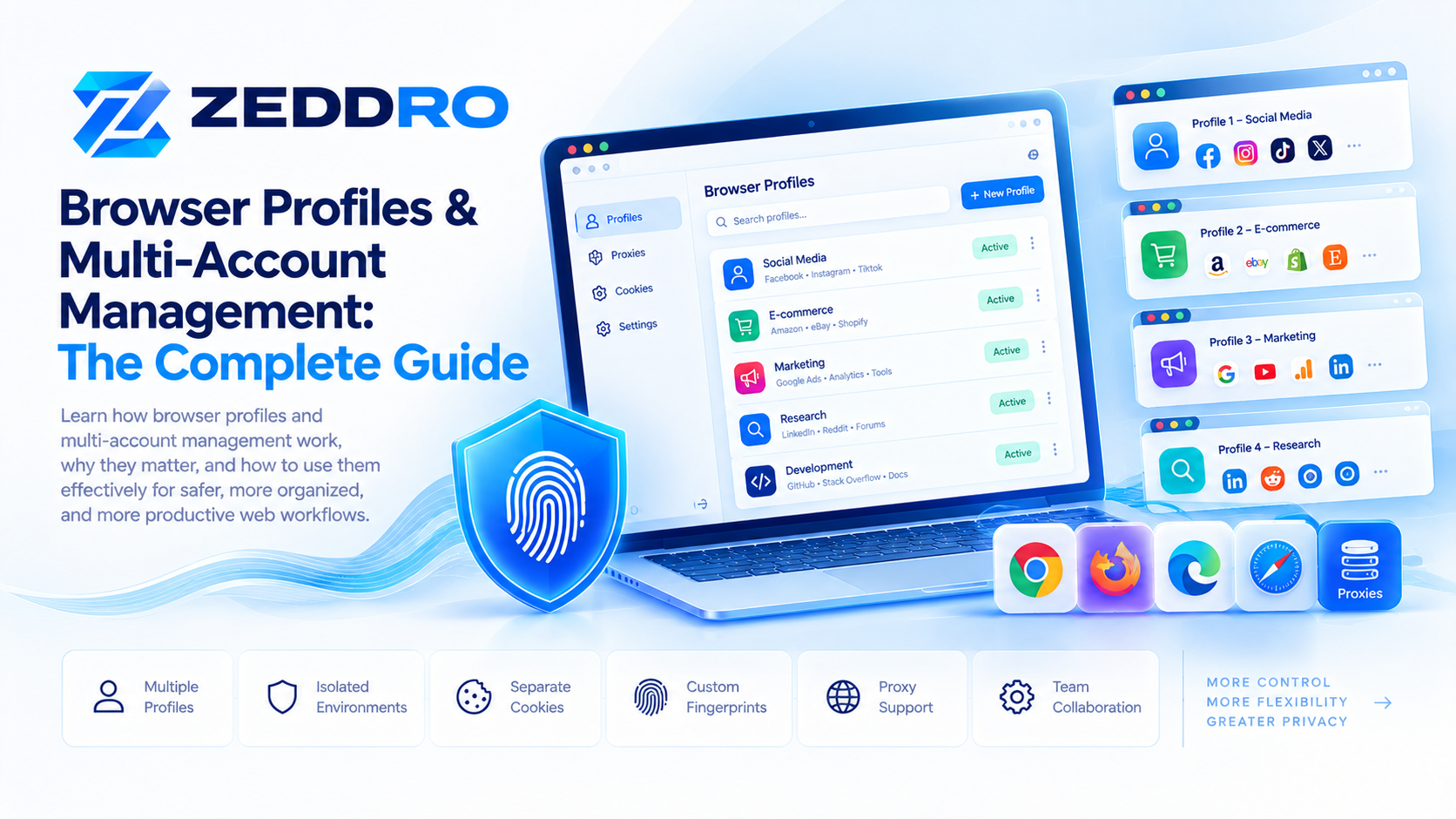
Multi-account browser management is the practice of organizing multiple browser environments so that different accounts or workflows can be accessed without repeatedly mixing their sessions and stored data.
A basic approach is:
Browser
│
├── Profile 01 → Account A
├── Profile 02 → Account B
├── Profile 03 → Account C
└── Profile 04 → Account D
For a small number of accounts, ordinary browser profiles may be sufficient.
For larger workflows, specialized browser-profile management software can add capabilities such as:
- Centralized profile management
- Profile naming and organization
- Proxy assignment
- Cookie import/export
- Fingerprint configuration
- Team sharing
- Permissions
- Profile folders
- Activity tracking
- Desktop agents
- Automated profile launching
This can make managing dozens or hundreds of environments considerably more structured.
What Is an Anti-Detect Browser?
An anti-detect browser is a browser or browser-management platform designed to provide greater control over browser identity-related characteristics and isolated browser environments.
A conventional browser profile mainly separates browser data.
An anti-detect browser may additionally provide controls for browser fingerprint-related signals.
A simplified comparison is:
| Capability | Standard Browser Profile | Anti-Detect Platform |
|---|---|---|
| Separate cookies | ✓ | ✓ |
| Separate local storage | ✓ | ✓ |
| Separate history | ✓ | ✓ |
| Separate extensions/settings | ✓ | ✓ |
| Profile organization | Basic | Advanced |
| Proxy per profile | Usually limited | Often available |
| Fingerprint controls | Limited | Advanced |
| Team management | Usually limited | Often available |
| Centralized profile management | Limited | ✓ |
The exact capabilities vary significantly between products.
It is also important to understand that fingerprint management is not the same as guaranteed anonymity or guaranteed avoidance of website security systems.
Websites can use many signals beyond a browser fingerprint, including account behavior, authentication information, network information, cookies, and other application-level signals.
Why Fingerprint Consistency Matters
If a browser environment exposes several related signals, those signals should make sense together.
Consider a simplified example:
Operating System → Windows
Browser → Chrome
Platform → Windows
Client Hints → Windows
Screen → Desktop
WebGL → Compatible graphics environment
Language → English
Time Zone → Consistent with configuration
This forms a coherent environment.
Now imagine an environment where unrelated signals conflict:
Operating System → Windows

Platform → macOS

Browser configuration → Windows

Client Hints → Different platform

Other signals → Contradictory
The important issue is not that one particular value is "wrong."
The issue is the relationship between the signals.
Modern websites can observe and correlate multiple pieces of information, so a browser environment should be managed as a system rather than as a collection of unrelated values.
How Browser Profile Management Has Evolved
Traditional browser profiles were primarily designed for convenience.
They allowed browsers to support multiple users or separate browsing environments on the same computer.
As web applications became more sophisticated, the need for more advanced browser-environment management also increased.
Modern profile-management platforms can combine several layers:
1. Browser Environment
The actual browser instance and configuration.
2. Stored State
Cookies, local storage, IndexedDB, sessions, and other site data.
3. Network Layer
Proxy or network configuration.
4. Fingerprint Layer
Browser-exposed characteristics such as Canvas, WebGL, AudioContext, Client Hints, and Navigator properties.
5. Organization Layer
Folders, naming, permissions, teams, and activity tracking.
Together, these layers create a much more complete profile-management system.
Browser Profiles for Teams
Browser profiles become particularly useful when multiple people need to work with the same collection of environments.
Instead of giving every team member uncontrolled access to everything, a profile-management system can provide:
- User roles
- Profile sharing
- Folder sharing
- Permission controls
- Centralized organization
- Activity tracking
- Audit logs
For example:
Marketing Team
│
├── Client A
│   ├── Profile 01
│   └── Profile 02
│
├── Client B
│   ├── Profile 03
│   └── Profile 04
│
└── Internal
    ├── Testing
    └── Research
This structure can reduce accidental account mixing and make responsibility clearer across a team.
Browser Profiles for Agencies
Agencies are one of the practical use cases for structured browser-profile management.
An agency may manage environments for:
- Multiple clients
- Different advertising projects
- Social media accounts
- E-commerce operations
- Research
- Testing
- Internal administration
Instead of maintaining an unstructured collection of browser windows, each environment can be associated with a specific project or client.
For example:
Agency Workspace

Client A
→ Social Media
→ Advertising
→ Analytics

Client B
→ Social Media
→ E-commerce
→ Research

Internal
→ Administration
→ Development
→ Testing
This is primarily an organization and separation problem, and browser profiles provide one useful layer of the solution.
Browser Profiles for Testing
Developers and QA teams can use separate browser profiles to reproduce different application states.
For example:
Profile A
Fresh environment
Profile B
Returning user
Profile C
Authenticated user
Profile D
Testing environment with specific extensions
This can make testing more repeatable because each profile can preserve a particular browser state.
Specialized profile-management systems can extend this approach by allowing teams to create, duplicate, configure, and organize many test environments.
Browser Profiles and Zeddro
Zeddro is designed around the concept of managed browser profiles.
Instead of treating a browser profile as simply another window, Zeddro provides a centralized environment for creating and managing profiles.
A Zeddro profile can be organized around several components, including:
- Browser fingerprint configuration
- Cookies and stored sessions
- Proxy configuration
- WebRTC settings
- Profile-specific browser data
- Team access
- Permissions
- Profile organization
The goal is to give users a structured way to maintain separate browser environments for legitimate workflows such as advertising operations, social media management, e-commerce, research, testing, and client work.
Profile isolation
Each profile is intended to function as an independent browser environment rather than mixing all projects into one browser session.
Fingerprint configuration
Zeddro provides controls for browser-exposed fingerprint-related characteristics, helping users configure a coherent browser environment.
Proxy management
A proxy can be assigned to an individual profile when a different network route is required for a legitimate workflow.
Cookie management
Users can import, export, and manage profile cookies and sessions.
Team collaboration
Profiles can be organized and shared with team members using roles and permissions.
This combination turns individual browser profiles into a broader browser profile management system.
What Browser Profiles Do Not Do
Browser profiles are useful, but they are not a complete privacy or identity solution.
A profile does not automatically:
- Make you anonymous
- Hide your IP address
- Change your physical device
- Change every fingerprint signal
- Override website policies
- Guarantee account security
- Guarantee that two accounts cannot be correlated
- Prevent all tracking
A browser profile should therefore be understood as one layer of browser-environment management.
The broader environment can include:
Browser Profile
        +
Stored State
        +
Fingerprint Signals
        +
Network
        +
Account Information
        +
Website Behavior
Websites can evaluate many of these factors together.
Browser Profile Management Best Practices
If you manage multiple browser profiles, a few principles can make the system more reliable.
1. Give Every Profile a Clear Purpose
Instead of:
Profile 1
Profile 2
Profile 3
use meaningful names:
Client-A-Social
Client-A-Ads
Client-B-Shop
Internal-Testing
Research
This reduces mistakes.
2. Keep Related Data Together
A profile should represent a coherent workflow.
Avoid randomly mixing:
- Cookies
- Extensions
- Accounts
- Proxy settings
- Testing data
between unrelated profiles.
3. Avoid Unnecessary Fingerprint Changes
Changing every browser characteristic whenever you open a profile is not automatically better.
Fingerprint-related signals can have relationships with one another.
A more sensible approach is to maintain a stable, coherent configuration appropriate for the intended environment.
4. Use Separate Profiles for Separate Projects
If two workflows have completely different requirements, keeping them in separate profiles can simplify management.
This is particularly useful for:
- Client separation
- Personal/work separation
- Testing
- Research
- E-commerce projects
- Advertising operations
5. Control Team Access
When profiles contain authenticated sessions, access should be managed carefully.
Use:
- Appropriate roles
- Least-privilege permissions
- Shared folders where appropriate
- Activity monitoring
- Clear ownership
This reduces unnecessary exposure of sensitive sessions.
6. Back Up Important Profile Data
Where supported, maintain appropriate backups or exports of important cookies and configuration data.
Be careful with exported authentication data because cookies and session information can sometimes provide access to already-authenticated services.
Treat exported session data as sensitive.
Are Browser Profiles the Same as Virtual Machines?
No.
A browser profile and a virtual machine operate at very different levels.
Browser Profile
Separates browser-level data and configuration.
Virtual Machine
Creates a virtualized operating-system environment.
A virtual machine can have:
- Its own operating system
- Virtual hardware
- Its own applications
- Its own filesystem
- Its own network configuration
A browser profile operates inside an existing operating system and browser.
Therefore:
Browser profile ≠ virtual machine
A profile is much lighter and more convenient for many browser-management workflows.
Are Browser Profiles the Same as Containers?
Not exactly.
A software container generally isolates applications and processes at the operating-system level.
A browser profile primarily isolates browser data and configuration.
The technologies and isolation boundaries are different.
For everyday browser management, profiles are considerably more lightweight than full virtualized environments.
How Many Browser Profiles Can You Have?
There is no universal number.
The practical limit depends on:
- Browser implementation
- Available storage
- RAM
- CPU resources
- Number of active browser processes
- Extensions
- Websites being used
- Profile size
- Operating system resources
Creating hundreds of profiles does not mean hundreds of profiles can efficiently run simultaneously.
There is an important difference between:
profiles stored
and
browser instances actively running.
A profile-management platform can help organize many environments, but system resources still matter when launching many browser instances simultaneously.
Browser Profiles and Browser Performance
Each active browser profile can consume system resources depending on what is running inside it.
Memory usage can increase because of:
- Open tabs
- JavaScript applications
- Extensions
- Video
- Background processes
- Web workers
- Browser instances
Therefore, managing many profiles efficiently often means keeping inactive environments closed until they are needed.
For large-scale operations, performance planning becomes important.
The Future of Browser Profile Management
The web is becoming increasingly stateful and application-driven.
Modern websites use a combination of:
- Cookies
- Local storage
- IndexedDB
- Browser APIs
- Client Hints
- Network information
- Device and browser characteristics
- Authentication systems
- Behavioral signals
As this complexity grows, simply opening another browser window is no longer enough for many professional workflows.
Modern browser-profile platforms increasingly combine:
Profile Isolation + Fingerprint Configuration + Proxy Management + Session Management + Team Collaboration
into one system.
This makes browser profiles useful not only for personal organization, but also for professional browser operations.
Browser Profile vs Multi-Account Management
These terms are related but not identical.
A browser profile is the environment.
Multi-account management is the broader workflow of organizing and operating multiple accounts or browser environments.
Think of it this way:
Browser Profile
      ↓
Provides separation
      ↓
Multi-Account Management
      ↓
Organizes multiple separated environments
      ↓
Professional Workflow
A single profile can contain one or several sessions depending on the application.
A multi-account system typically involves multiple profiles and additional organization tools.
Common Misconceptions About Browser Profiles
"A new window creates a new identity."
Not necessarily.
A new window normally belongs to the same browser profile.
"Incognito creates a permanent separate profile."
No.
Private browsing is generally temporary and serves a different purpose.
"Every browser profile has a completely different fingerprint."
No.
Standard browser profiles primarily separate browser state. Fingerprint characteristics can remain substantially similar.
"Changing the profile changes the IP."
No.
The IP address is associated with the network connection, not simply the browser profile.
"Deleting cookies completely resets a browser."
No.
A browser can retain many other types of data and expose other browser characteristics.
"A browser profile guarantees anonymity."
No.
A profile is a browser-environment management mechanism, not a guarantee of anonymity.
Frequently Asked Questions
What is a browser profile?
A browser profile is a separate browser environment containing its own settings, cookies, history, storage, extensions, and other browser data.
Why use multiple browser profiles?
Multiple profiles can help separate personal and professional browsing, manage different accounts, organize client projects, and maintain dedicated testing environments.
Do browser profiles have separate cookies?
Yes. Separate profiles can maintain separate cookie and site-storage environments.
Does a browser profile change your IP address?
No. A browser profile does not automatically change the network connection or public IP address.
Does a browser profile change your fingerprint?
A standard browser profile does not necessarily create a completely different fingerprint. Specialized platforms can provide additional controls over fingerprint-related browser signals.
Is a browser profile the same as incognito mode?
No. Incognito/private browsing is primarily a temporary browsing mode, while a browser profile is a persistent browser environment.
Can I use multiple accounts with browser profiles?
Yes, browser profiles can make it easier to maintain separate sessions for different accounts, provided the use complies with the relevant website's policies.
Are browser profiles useful for agencies?
Yes. Agencies can use separate profiles to organize client accounts, projects, testing environments, and internal workflows.
Are browser profiles useful for developers?
Yes. Developers can create separate environments for testing different login states, site configurations, extensions, and application scenarios.
Are browser profiles private?
Profiles provide local separation of browser data, but they should not be confused with complete online privacy or anonymity.
Key Takeaways
A browser profile is a separate browser environment, not simply another browser window.
The most important points are:
- Profiles separate browser state and configuration.
- Cookies and local storage can remain separate between profiles.
- Multiple profiles can simplify multi-account management.
- Profiles are useful for personal/work separation, client management, testing, and research.
- A standard browser profile does not automatically create a completely different fingerprint.
- A profile does not automatically change your IP address.
- Fingerprint management and profile management are related but different concepts.
- Coherent browser environments matter more than arbitrary changes to individual signals.
- Team-oriented profile management can add permissions, sharing, organization, and auditing.
- Browser profiles are one layer of browser-environment management—not a guarantee of anonymity or account security.
Final Takeaway
Browser profiles provide a simple but powerful way to separate browser environments.
At the basic level, they keep cookies, storage, history, preferences, and other browser data organized into independent environments. At a professional level, specialized browser-profile platforms can add fingerprint configuration, proxy management, session tools, profile organization, and team collaboration.
The most useful way to think about a browser profile is not as a "new identity," but as a controlled browser environment.
When those environments are properly organized and kept consistent, they can make multi-account workflows, client management, testing, research, advertising operations, and other professional web tasks significantly easier to manage.
Related Zeddro Articles
- What Is Browser Fingerprinting? How It Works
- How Browser Fingerprinting Works: A Technical Deep Dive
- Browser Fingerprint Consistency: Why It Matters
- Browser Fingerprint vs IP Address: What's the Difference?
- Browser Fingerprint vs Cookies: What's the Difference?