Managing several online accounts from one computer can become surprisingly complicated.
A single browser may contain personal email, business accounts, client dashboards, social-media accounts, e-commerce platforms, analytics tools, development environments, and dozens of bookmarks and extensions.
Without a clear structure, these environments can quickly become difficult to manage.
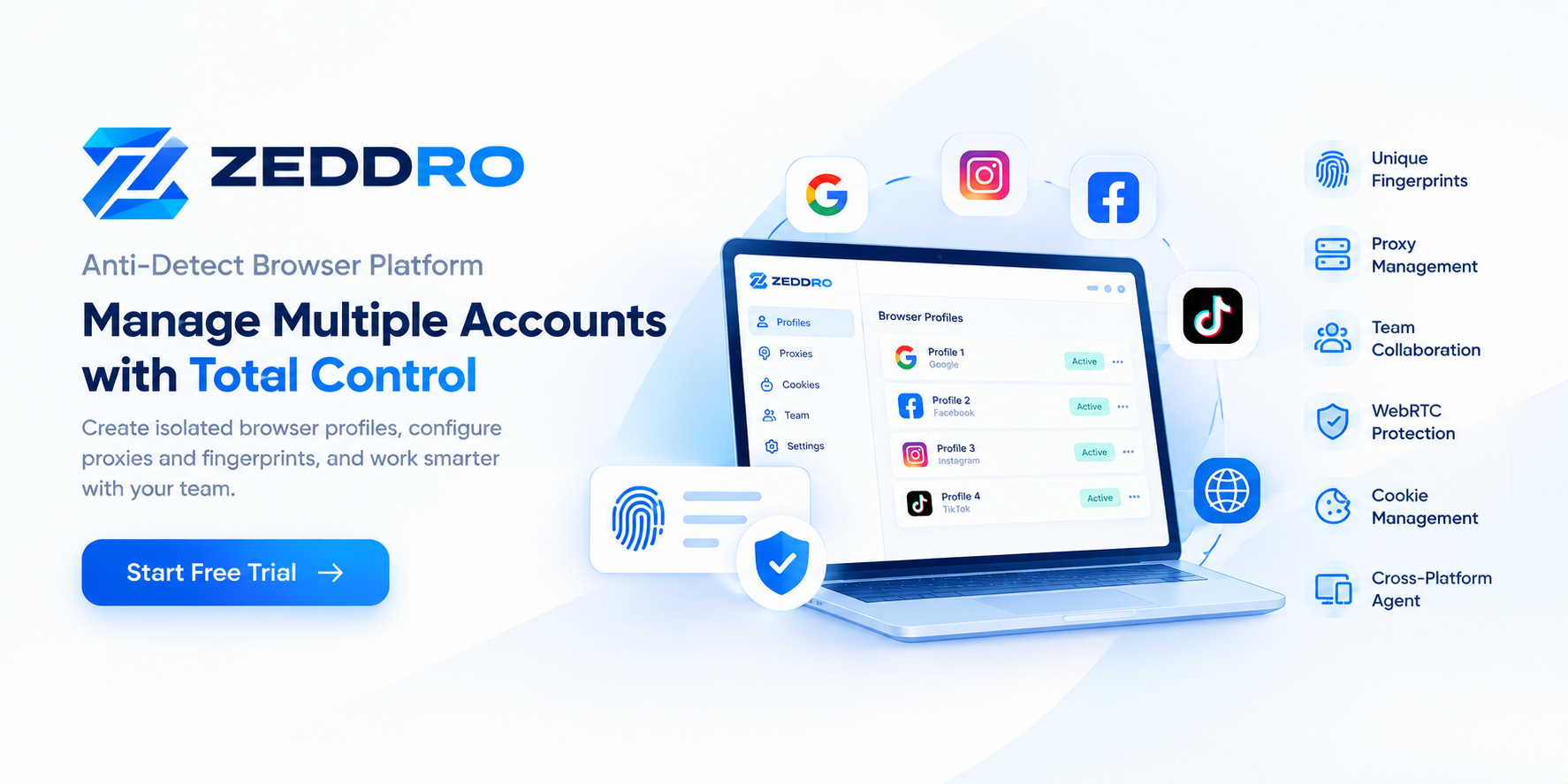
Browser profiles provide a practical way to separate these activities into persistent browser environments.
You can create one profile for personal browsing, another for work, individual profiles for clients, and additional profiles for testing or research.
Google Chrome officially supports multiple profiles to help keep work and personal information separate, while Firefox profiles can be used to maintain separate browsing environments and test different setups.
This guide explains how to build a useful browser-profile system, how to organize profiles as they grow, and when a specialized profile-management platform may make more sense than native browser profiles.
What Is a Browser Profile?
A browser profile is a separate browser environment that maintains its own set of browser data and settings.
Depending on the browser, this can include:
- Bookmarks
- Browsing history
- Passwords
- Cookies
- Site data
- Extensions
- Permissions
- Preferences
- Other browser configuration
Firefox explicitly describes a profile as a place where bookmarks, passwords, settings, and browsing data are stored. Firefox also supports multiple profiles for purposes such as separating work and personal browsing or testing different configurations.
Chrome similarly provides multiple profiles to separate work and personal information.
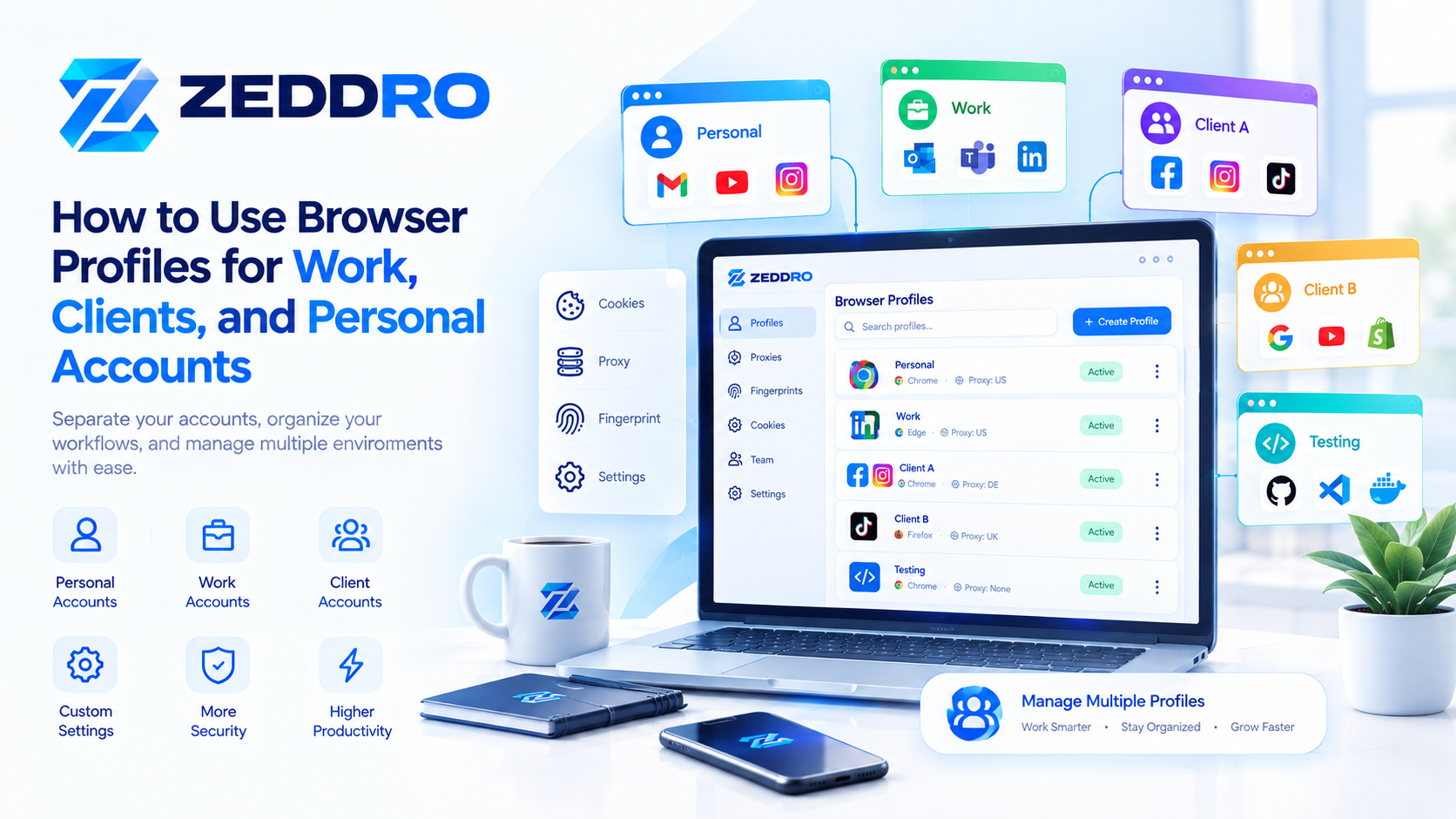
A simple structure might look like this:
Browser
│
├── Personal
│   ├── Email
│   ├── Shopping
│   ├── Social
│   └── Personal research
│
├── Work
│   ├── Business email
│   ├── Analytics
│   ├── Advertising
│   └── Work tools
│
├── Client A
│   ├── Client accounts
│   ├── Analytics
│   └── Social media
│
└── Testing
    ├── Test accounts
    ├── Development tools
    └── QA
The important idea is simple:
One profile should represent one logical browsing environment.
Why Use Multiple Browser Profiles?
The main advantage of profiles is separation.
Imagine using the same browser environment for:
- Personal Gmail
- Company email
- Client dashboards
- Google Ads
- Facebook Business
- Shopify
- Amazon Seller Central
- Social-media accounts
- Development tools
- Research
You can certainly do this, but your browser state becomes increasingly difficult to organize.
With profiles, you can divide these activities according to their purpose.
For example:
Personal → Personal accounts

Work → Your business

Client A → Client A

Client B → Client B

Testing → Development and QA

Research → Research activities
Instead of organizing hundreds of tabs, you first organize the environment in which those tabs belong.
1. Start With the Main Categories
Before creating profiles, identify the different types of work you actually perform.
A useful starting point is:
Personal
For your private browsing activities.
Work
For your own business and professional operations.
Clients
Separate profiles for important clients or projects.
Testing
For development, QA, and testing websites.
Research
For research-heavy workflows that require many temporary tools and websites.
E-commerce
For store administration, supplier dashboards, marketplaces, and related services.
You don't necessarily need all of these.
The objective is not to create as many profiles as possible.
The objective is to create meaningful separation.
2. Create a Dedicated Personal Profile
Your first profile can simply be:
Personal
Use it for things such as:
- Personal email
- Shopping
- Personal social media
- News
- Entertainment
- Personal accounts
- Private research
Keep the profile focused.
Your personal profile does not need to contain every extension or bookmark you use for professional work.
This makes the environment easier to understand and maintain.
3. Create a Dedicated Work Profile
Next, create:
Work
This profile can contain:
- Business email
- Project-management tools
- Analytics
- Advertising dashboards
- Cloud services
- Business social media
- Developer tools
- Work-related bookmarks
Chrome specifically recommends profiles as a way to keep work and personal information separate.
A useful principle is:
If two activities have different purposes, they do not necessarily need to share the same browser environment.
4. Create Profiles for Important Clients
For client work, you can create profiles such as:
Client A
Client B
Client C
Each profile becomes a dedicated workspace.
For example:
Client A
Client A
├── Email
├── Analytics
├── Advertising
├── Social Media
└── Project Management
Client B
Client B
├── Email
├── E-commerce
├── Analytics
├── Social Media
└── Reporting
This is particularly useful for agencies and freelancers working with several organizations.
Instead of remembering which cookies, bookmarks, extensions, and sessions belong to each client, the profile itself becomes the organizational boundary.
5. Use Clear Profile Names
Naming becomes extremely important once you have more than a few profiles.
Avoid names such as:
Profile 1
Profile 2
Profile 3
Profile 4
These names become useless very quickly.
Instead use:
Personal
Work
Client - Acme
Client - Example
Testing
Research
Store - Main
Store - EU
If you manage many profiles, use a consistent naming convention.
For example:
CLIENT - Acme
CLIENT - Example
WORK - Marketing
WORK - Development
TEST - Website
TEST - Checkout
A good naming system allows you to understand a profile immediately without opening it.
6. Use Profile Colors or Visual Identifiers
If your browser supports profile customization, give profiles visually distinct identities.
For example:
Personal → Blue
Work → Dark
Client A → Green
Client B → Purple
Testing → Orange
The exact colors do not matter.
The objective is recognition.
When several browser windows are open, a visual distinction can make it easier to identify which environment you're currently using.
Firefox allows users to customize profile names, themes, and avatars.
7. Organize Bookmarks by Purpose
Bookmarks are another major advantage of profile separation.
Instead of having one huge bookmark collection:
Bookmarks
├── Work
├── Personal
├── Client A
├── Client B
├── Development
├── Shopping
├── Research
└── Everything else
you can let the profile itself provide the first layer of separation.
For example:
Work Profile
└── Work bookmarks

Client A Profile
└── Client A bookmarks

Personal Profile
└── Personal bookmarks
This reduces unnecessary clutter.
8. Keep Extensions Relevant to the Profile
Extensions can also become difficult to manage when everything is installed into one browser environment.
For example, your work profile may need:
- Password manager
- Productivity tools
- Analytics tools
- Developer tools
Your testing profile may need:
- Developer utilities
- Debugging tools
- Accessibility tools
- Testing extensions
Your personal profile may need completely different extensions.
Avoid installing every extension everywhere.
A useful rule is:
Install an extension only where that profile actually needs it.
This makes profiles lighter and easier to maintain.
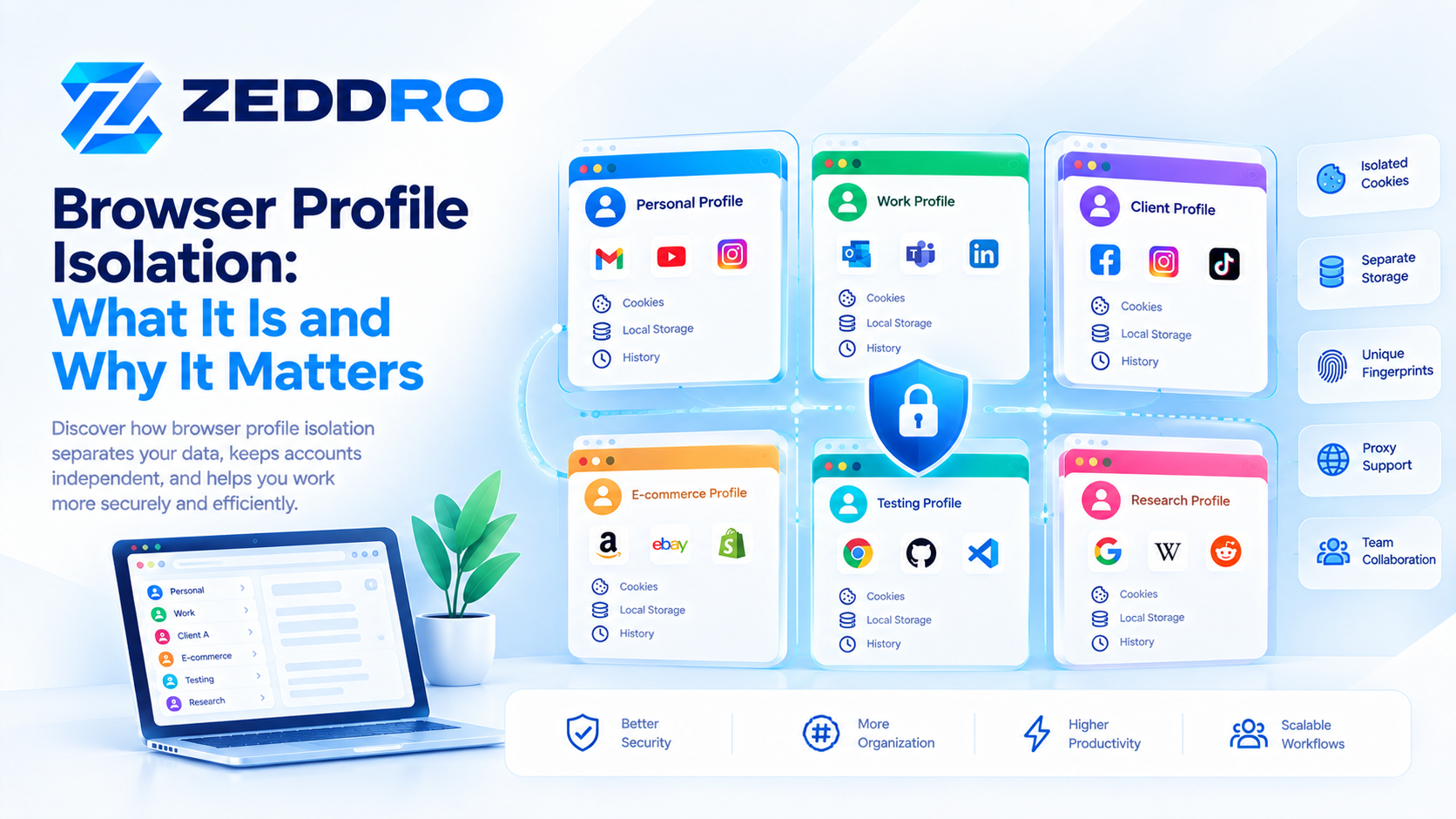
9. Understand Cookies and Sessions
One of the most important reasons profiles are useful is browser state.
Cookies can store information such as authentication state, preferences, and other site-specific information. Modern websites can also use browser storage mechanisms such as localStorage, sessionStorage, and IndexedDB.
This means a browser environment is more than its open tabs.
It contains persistent state.
For example:
Client A Profile
│
├── Cookies
├── Local Storage
├── Session information
├── Bookmarks
└── Preferences
while:
Client B Profile
│
├── Cookies
├── Local Storage
├── Session information
├── Bookmarks
└── Preferences
This separation is useful because the two environments can maintain different browser state.
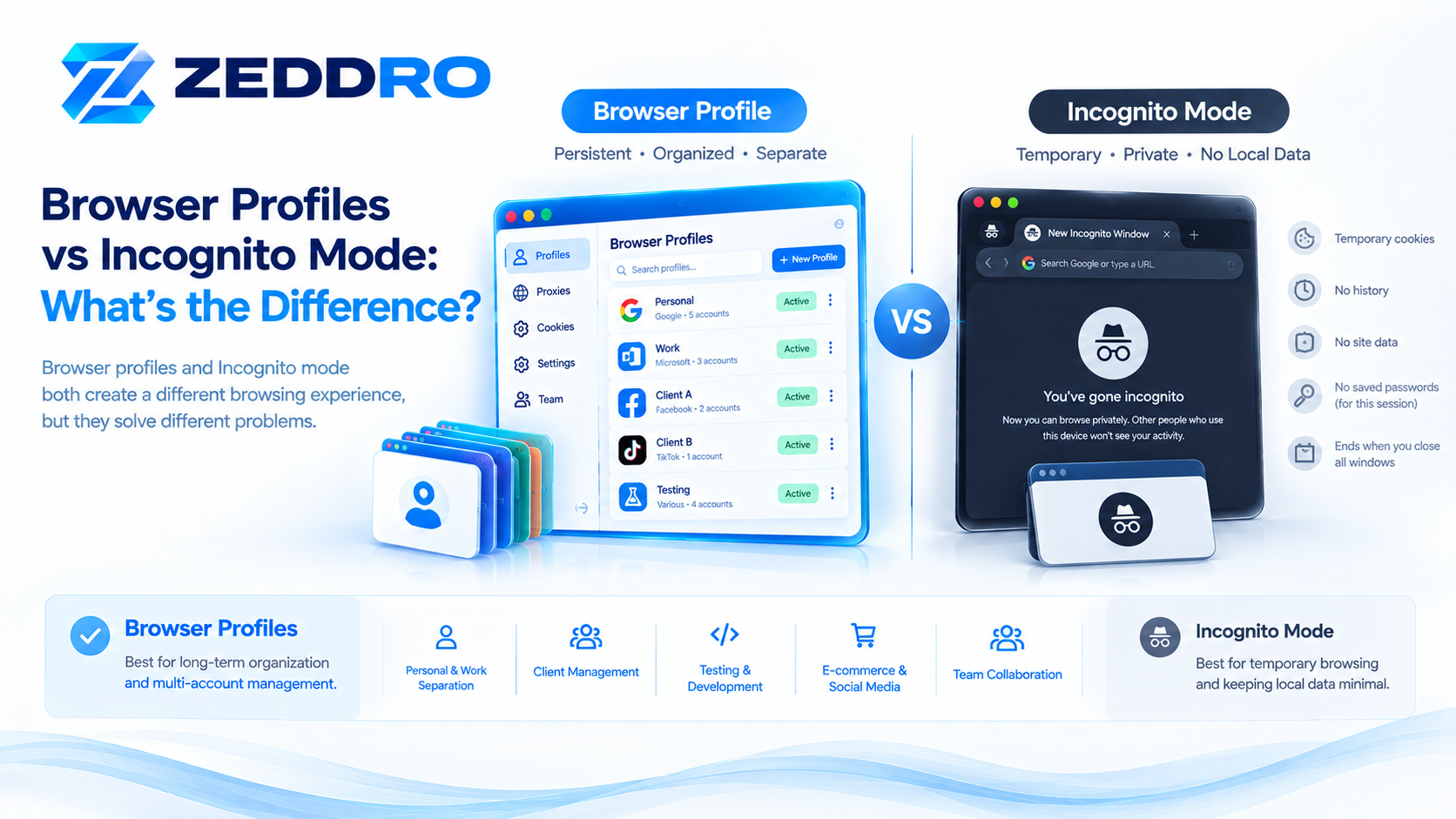
10. Don't Confuse Profiles With Incognito
A browser profile and Incognito mode solve different problems.
Browser Profile
Designed for:
- Persistent environments
- Long-term workflows
- Account separation
- Workspaces
- Client management
Incognito
Designed for:
- Temporary sessions
- Reduced local browsing history
- Temporary site state
- Quick testing
A useful mental model is:
Browser Profile
        ↓
Persistent environment

Incognito
        ↓
Temporary session
If you need the same environment tomorrow, a profile is generally more appropriate.
If you need a temporary session that should not become part of your normal browsing environment, Incognito may be more appropriate.
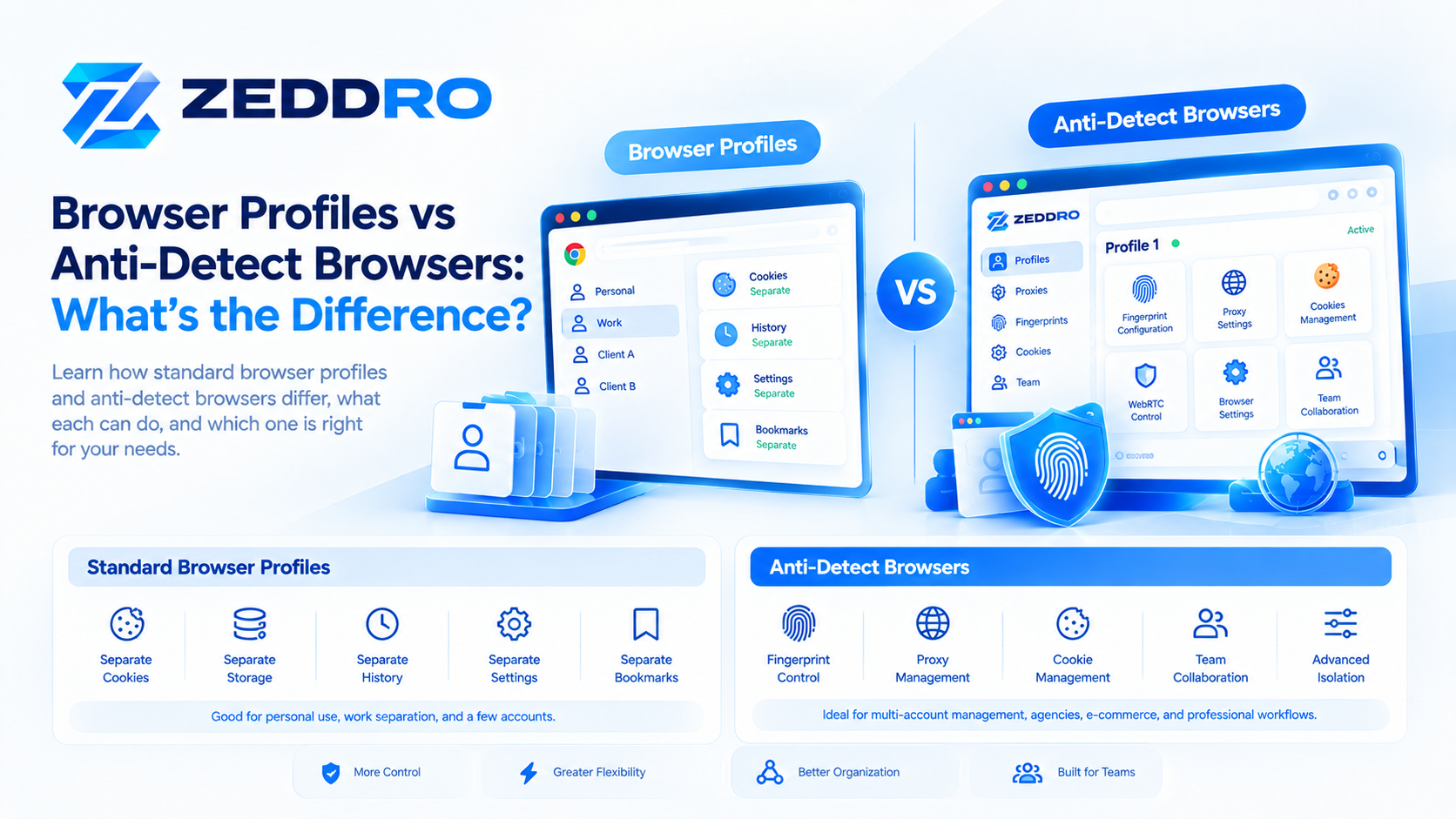
11. Browser Profiles Are Not the Same as Browser Fingerprints
This distinction is especially important for advanced browser management.
A normal browser profile primarily separates browser state and configuration.
It does not automatically mean that every profile has a completely different browser fingerprint.
Browser fingerprinting can involve observable browser and device characteristics.
The W3C notes that exposing browser settings and characteristics can affect privacy through fingerprinting.
Therefore:
Profile A
Cookies
Storage
Settings
History

Profile B
Cookies
Storage
Settings
History
does not automatically mean:
Fingerprint A ≠ Fingerprint BThese are different layers of browser identity and state.
This distinction becomes important when comparing native browser profiles with specialized browser-profile platforms.
12. Decide Whether Profiles Should Be Personal or Shared
For individual use, you can create profiles around your own workflows.
For teams, however, you need an additional question:
Who should have access to each environment?
For example:
Client A
├── Manager
├── Media Buyer
└── Analyst

Client B
├── Manager
└── Media Buyer
Native browser profiles are primarily local browser environments.
If multiple people need centralized access to managed browser environments, a dedicated profile-management platform can provide capabilities that ordinary browser profiles do not.
13. Create a Profile for Testing
A dedicated testing profile can be extremely useful for developers.
For example:
TestingUse it for:
- Website testing
- Login testing
- Cookie testing
- Extension testing
- QA
- Development environments
- Testing new browser settings
Keeping testing separate from your daily browser environment can reduce conflicts.
For example, you may not want development extensions, experimental settings, or test sessions mixed with your normal work environment.
Firefox explicitly lists testing different setups as one use case for multiple profiles.
14. Create Separate Profiles for E-commerce Workflows
E-commerce can involve many different systems:
- Store administration
- Payment dashboards
- Supplier platforms
- Marketplaces
- Analytics
- Advertising
- Customer support
You could structure your browser like this:
E-commerce
│
├── Store A
├── Store B
├── Supplier
├── Analytics
└── Advertising
For larger operations, you might go further:
STORE - A
STORE - B
STORE - C
The right structure depends on how independent the workflows are.
15. Use Profiles for Social Media Management
Social-media managers often work with several brands and clients.
Instead of putting every account into one browser environment, you can organize them by project:
Social
│
├── Brand A
├── Brand B
├── Client A
└── Client B
This can make the browser easier to navigate and reduce accidental mixing of bookmarks, sessions, and browser state.
It also gives each project a clearly defined workspace.
16. Use a Profile for Research
Research can generate a surprising amount of browser clutter.
A research profile can contain:
- Research bookmarks
- Search tools
- Reference websites
- Documentation
- Academic resources
- Temporary extensions
- Research-related sessions
When the project ends, you can archive or clean the profile without disturbing your normal work environment.
17. Build a Simple Profile Naming System
If you only have five profiles, simple names are enough.
If you have dozens, create a naming convention.
For example:
PERSONAL
WORK
CLIENT - 001
CLIENT - 002
CLIENT - 003
TEST - DEV
TEST - QA
STORE - 001
STORE - 002
RESEARCH
For agencies, you can also include project identifiers:
CLIENT-A - ADS
CLIENT-A - SOCIAL
CLIENT-A - SHOP
CLIENT-B - ADS
CLIENT-B - SOCIAL
The important thing is consistency.
18. Organize Profiles Into Logical Groups
Once you have many profiles, folders or categories can help.
For example:
Clients
├── Client A
├── Client B
└── Client C

Internal
├── Marketing
├── Development
└── Administration

Testing
├── QA
├── Staging
└── Development
This is especially valuable for professional teams.
Instead of seeing 50 unrelated browser environments, you see a structured workspace.
19. Avoid Creating Too Many Profiles
More profiles do not automatically mean better organization.
Creating a profile for every website can create the opposite problem.
For example, you probably do not need:
Gmail Profile
Facebook Profile
YouTube Profile
Amazon Profile
Google Profile
unless there is a real operational reason.
Instead, group related activities:
WORKor:
CLIENT AThe goal is logical separation, not maximum fragmentation.
20. Keep a Profile Lifecycle
Professional profile management should include a lifecycle.
A simple lifecycle is:
Create
  ↓
Configure
  ↓
Use
  ↓
Maintain
  ↓
Archive
  ↓
Delete when no longer needed
For example, when a client project ends, you can decide whether the profile should be:
- Kept active
- Archived
- Backed up
- Transferred
- Deleted
This prevents old environments from accumulating indefinitely.
21. Back Up Important Browser Data
A profile can contain valuable information.
Depending on your browser and configuration, this can include:
- Bookmarks
- Passwords
- Settings
- Extensions
- Browsing data
- Other profile information
Firefox documents profile backup and restoration as part of its profile-management workflow.
For important environments, make sure you understand how your browser sync and backup mechanisms work before deleting or moving a profile.
Do not assume that creating a profile automatically means the data is backed up somewhere else.
For example, Firefox states that profiles are local by default and do not automatically sync simply because the profile exists; syncing requires the appropriate Mozilla account configuration.
22. Be Careful With Browser Sync
Sync can be useful, but it needs to be understood.
Chrome can synchronize information such as bookmarks, passwords, settings, extensions, tabs, and history when configured with a Google account.
Firefox similarly allows profile data to be synchronized through Mozilla accounts when Sync is configured.
Before enabling synchronization, decide what data should be synchronized and where it should be available.
For business environments, this is particularly important.
23. Don't Treat a Profile as a Security Boundary
A browser profile is useful for organization and separation, but it is not equivalent to:
- A virtual machine
- A separate operating system
- A separate physical computer
- A security sandbox
- A completely isolated network
The profile separates browser state, but the underlying device and operating environment may remain shared.
This distinction matters when designing security-sensitive workflows.
24. Understand the Difference Between Profile and IP
A browser profile controls browser-side state.
An IP address represents a network endpoint.
They are different layers.
For example:
Browser Profile
       │
       ├── Cookies
       ├── Storage
       ├── Settings
       └── Extensions

Network
       │
       └── IP Address
Changing or separating one does not automatically change the other.
This is why a browser profile should never be described as automatically providing a new network identity.
25. When Native Browser Profiles Are Enough
Native browser profiles are often sufficient if you have:
- A small number of accounts
- A few workspaces
- Personal and business separation
- Basic client separation
- Simple testing requirements
- No need for centralized team management
For example:
Personal
Work
Client A
Client B
Testing
may be all you need.
There is no reason to use a specialized system simply because you have more than one account.
26. When a Specialized Profile Platform Makes Sense
A dedicated browser-profile platform becomes more useful when your requirements go beyond basic browser organization.
You may benefit from centralized management when you need:
- Dozens or hundreds of profiles
- Central profile dashboards
- Profile folders
- Team collaboration
- Role-based permissions
- Proxy assignment
- Fingerprint configuration
- Cookie management
- Profile sharing
- Activity tracking
- Cross-platform browser agents
- Consistent profile configuration
At that point, manually managing individual browser profiles can become inefficient.
The workflow changes from:
Open browser
↓
Find profile
↓
Configure manually
↓
Work
to:
Central dashboard
↓
Select environment
↓
Configure profile
↓
Launch browser
↓
Work
That distinction is particularly important for agencies and teams.
27. How Zeddro Fits Into This Workflow
Zeddro is designed for users who need more control over managed browser environments than traditional browser profiles provide.
A typical Zeddro workflow can be structured like:
Zeddro Workspace
│
├── Personal
├── Work
├── Client A
├── Client B
├── E-commerce
└── Testing
Each managed profile can be configured with the browser environment and resources appropriate to its workflow.
Depending on the setup, this can include:
- Fingerprint configuration
- Proxy assignment
- Cookies
- Browser profile data
- Profile folders
- Team permissions
- Shared environments
- Local browser instances
The key concept is centralized browser-environment management.
Rather than treating each browser profile as an isolated manual installation, a managed platform provides a single place to organize and operate multiple environments.
28. A Practical Setup for a Freelancer
If you are a freelancer, you might start with:
PERSONAL
WORK
CLIENT - A
CLIENT - B
TESTING
Personal
Your personal accounts.
Work
Your own professional accounts and tools.
Client A
Everything related to Client A.
Client B
Everything related to Client B.
Testing
Development and QA.
This is simple enough to maintain without overengineering the setup.
29. A Practical Setup for an Agency
An agency can use a more structured system:
INTERNAL
│
├── Administration
├── Marketing
└── Development

CLIENTS
│
├── Client A
│   ├── Ads
│   ├── Social
│   └── Analytics
│
├── Client B
│   ├── Ads
│   ├── Social
│   └── Analytics
│
└── Client C
    ├── Ads
    ├── Social
    └── Analytics

TESTING
│
├── QA
├── Staging
└── Development
At this level, centralized profile management becomes more valuable because the number of environments and users increases.
30. A Practical Setup for E-commerce
An e-commerce operator might use:
STORES
│
├── Store A
├── Store B
└── Store C

OPERATIONS
│
├── Suppliers
├── Customer Support
└── Analytics

MARKETING
│
├── Advertising
└── Social Media

TESTING
└── QA
The exact structure should reflect how your business actually operates.
Avoid creating unnecessary layers just because they look organized.
31. A Practical Setup for Developers
Developers can use profiles for different environments:
PERSONAL
WORK
DEV
STAGING
QA
RESEARCH
For example:
DEV
Used for active development.
STAGING
Used for staging websites and services.
QA
Used for testing.
This separation can make it easier to reproduce browser-related issues without changing your normal environment.
32. Common Mistakes to Avoid
Mistake 1: Creating Too Many Profiles
If every website gets its own profile, management becomes harder.
Create profiles around meaningful workflows.
Mistake 2: Using Generic Names
"Profile 7" is difficult to manage.
Use descriptive names.
Mistake 3: Installing Every Extension Everywhere
This creates unnecessary complexity.
Install only what each environment needs.
Mistake 4: Mixing Client Data
Avoid using one environment for unrelated clients when separation is important to your workflow.
Mistake 5: Assuming Profiles Change Everything
A profile separates browser state, but it does not automatically create a different physical device, network connection, or completely independent browser fingerprint.
Mistake 6: Ignoring Backups
Important profile data should have an appropriate backup or synchronization strategy.
Mistake 7: Forgetting Profile Ownership
For teams, clearly define who owns and manages each environment.
33. How Many Browser Profiles Should You Have?
There is no universal number.
The right number depends on your workflow.
A useful rule is:
Create a new profile when the browser environment needs to remain meaningfully separate from another environment.
For example:
1–5 profiles
Usually easy to manage manually.
5–20 profiles
Naming, organization, and maintenance become increasingly important.
20–100+ profiles
Centralized management can become significantly more useful.
The number itself is not the deciding factor.
Complexity is.
34. Browser Profiles and Performance
Multiple profiles can consume additional system resources, especially when multiple browser windows and tabs are active at the same time.
The actual impact depends on:
- Number of open tabs
- Extensions
- Websites being used
- Memory usage
- Browser architecture
- Operating system
- Hardware
Therefore, having 50 profiles does not necessarily mean all 50 should be running simultaneously.
A better strategy is:
Create as many environments as your workflow requires, but only run what you currently need.
35. A Simple Daily Workflow
Here is a practical daily workflow.
Morning
Open:
WORKComplete your internal tasks.
Client work
Switch to:
CLIENT - AWhen finished:
CLIENT - BDevelopment
Open:
TESTINGPerform your testing.
Personal
Switch to:
PERSONALYour personal browsing remains separate.
This simple system eliminates much of the confusion caused by mixing unrelated activities in one browser environment.
36. A Better Way to Think About Browser Profiles
Don't think of a profile as simply:
"Another Chrome window."
Think of it as:
A persistent browser workspace with its own state, settings, and purpose.
That mindset leads to better organization.
For example:
Profile = Workspacerather than:
Profile = WindowOnce you adopt this model, deciding when to create a profile becomes much easier.
Browser Profiles vs Accounts
A browser profile and an online account are not the same thing.
For example:
Browser Profile
      ↓
Can contain
      ↓
Multiple website accounts
A single profile can potentially be used for multiple services.
Likewise, one online account can sometimes be accessed from multiple browser profiles.
The profile is the browser environment.
The account is the service identity.
Keeping those concepts separate is important when designing your workflow.
Browser Profiles vs Browser Containers
Some browsers offer another concept called containers.
Firefox's documentation makes an important distinction:
- Profiles separate broader browser data such as bookmarks, settings, add-ons, browsing history, cookies, and logins.
- Multi-Account Containers primarily separate cookies, logins, and site data within one profile.
This makes containers useful when you want lighter separation without creating completely separate browser profiles.
A useful hierarchy is:
Browser
   │
   ├── Profile A
   │
   └── Profile B

Inside Profile A
   ├── Container 1
   ├── Container 2
   └── Container 3
The right choice depends on how much separation you actually need.
Browser Profiles and Privacy
Profiles can improve organizational privacy by keeping browser state separated between workflows.
However, they should not be presented as a complete privacy solution.
A profile does not automatically prevent websites from collecting information about the browser or device.
The W3C's fingerprinting guidance explains that observable browser characteristics can have privacy implications.
So the correct mental model is:
Profile isolation
        ↓
Separates browser state

Privacy protection
        ↓
Requires broader controls
These are related but different concepts.
The Ideal Browser Profile Strategy
For most users, a good strategy follows five principles:
1. Separate by purpose
Personal, work, clients, testing, research.
2. Use clear names
Avoid generic profile names.
3. Keep each profile lightweight
Only install the extensions and bookmarks you actually need.
4. Maintain the profiles
Archive environments that are no longer active.
5. Scale management as complexity grows
A handful of profiles can be managed manually.
A large professional operation may benefit from centralized profile-management software.
A Complete Example
Imagine a digital marketing professional managing several clients.
Their structure could be:
ZEDDRO WORKSPACE
│
├── PERSONAL
│
├── INTERNAL
│   ├── Administration
│   ├── Marketing
│   └── Development
│
├── CLIENT A
│   ├── Advertising
│   ├── Social Media
│   └── Analytics
│
├── CLIENT B
│   ├── Advertising
│   ├── Social Media
│   └── Analytics
│
├── E-COMMERCE
│   ├── Store A
│   └── Store B
│
└── TESTING
    ├── Development
    ├── Staging
    └── QA
This structure makes the purpose of every environment immediately clear.
As the operation grows, the same logical structure can be maintained inside a centralized browser-profile platform.
Final Checklist
Before creating a new browser profile, ask:
Purpose
Why does this environment need to be separate?
Data
Does it need its own cookies, storage, bookmarks, or history?
Extensions
Does it need different browser extensions?
Accounts
Will it contain a different group of accounts?
Ownership
Who is responsible for the profile?
Lifecycle
Will this profile be temporary or long-term?
Scale
Can I manage it manually, or do I need centralized management?
If you can answer these questions clearly, your profile structure will usually remain manageable.
Frequently Asked Questions
What is the best way to organize browser profiles?
Organize profiles around meaningful workflows such as Personal, Work, Client A, Client B, Testing, or Research rather than creating a profile for every website.
Should I create a separate browser profile for every client?
Not necessarily. It makes sense when the client's browser state, accounts, bookmarks, extensions, or workflow need meaningful separation.
Can one browser profile contain multiple accounts?
Yes. A profile is a browser environment, not a single online account. Whether multiple accounts can be used simultaneously depends on the website and its account/session behavior.
Do browser profiles have separate cookies?
Profiles are designed to maintain separate browser data. Firefox explicitly documents profiles as separating cookies and logins along with broader profile data.
Does creating a browser profile change my IP address?
No. A browser profile does not inherently change your network connection or IP address.
Does a browser profile create a new fingerprint?
Not automatically. Standard browser profiles primarily separate browser state and configuration. Observable browser and device characteristics can still be related across environments.
Are browser profiles better than Incognito?
They serve different purposes. Profiles are better for persistent environments and organization, while Incognito is designed for temporary browsing sessions.
Can I use browser profiles for testing?
Yes. Firefox explicitly lists testing different browser setups as a use case for multiple profiles.
Can browser profiles be synchronized?
Depending on the browser, profile data can be synchronized when the appropriate account and sync features are enabled. Chrome and Firefox both provide synchronization options.
When should I use a specialized browser-profile platform?
When you need centralized management, large numbers of profiles, team permissions, profile sharing, proxy configuration, fingerprint configuration, or other capabilities beyond ordinary browser profiles.
Key Takeaways
Browser profiles are most useful when they are treated as organized, persistent workspaces rather than simply additional browser windows.
The most effective approach is to:
- Separate personal and professional browsing.
- Create client profiles when client environments need meaningful separation.
- Use dedicated profiles for testing and development.
- Give every profile a clear name and purpose.
- Keep extensions and bookmarks relevant to each environment.
- Understand that cookies and browser storage are part of the profile's persistent state.
- Avoid creating unnecessary profiles.
- Back up important profile data appropriately.
- Remember that browser profiles do not automatically change IP addresses or browser fingerprints.
- Move to centralized profile management when the number and complexity of environments becomes difficult to manage manually.
-
The core principle is simple:
A good browser-profile system separates environments according to how you actually work.
For a few personal and professional environments, native browser profiles may be all you need. As the number of clients, accounts, projects, and team members increases, a managed browser-profile platform can provide the organization and control needed to operate those environments more efficiently.