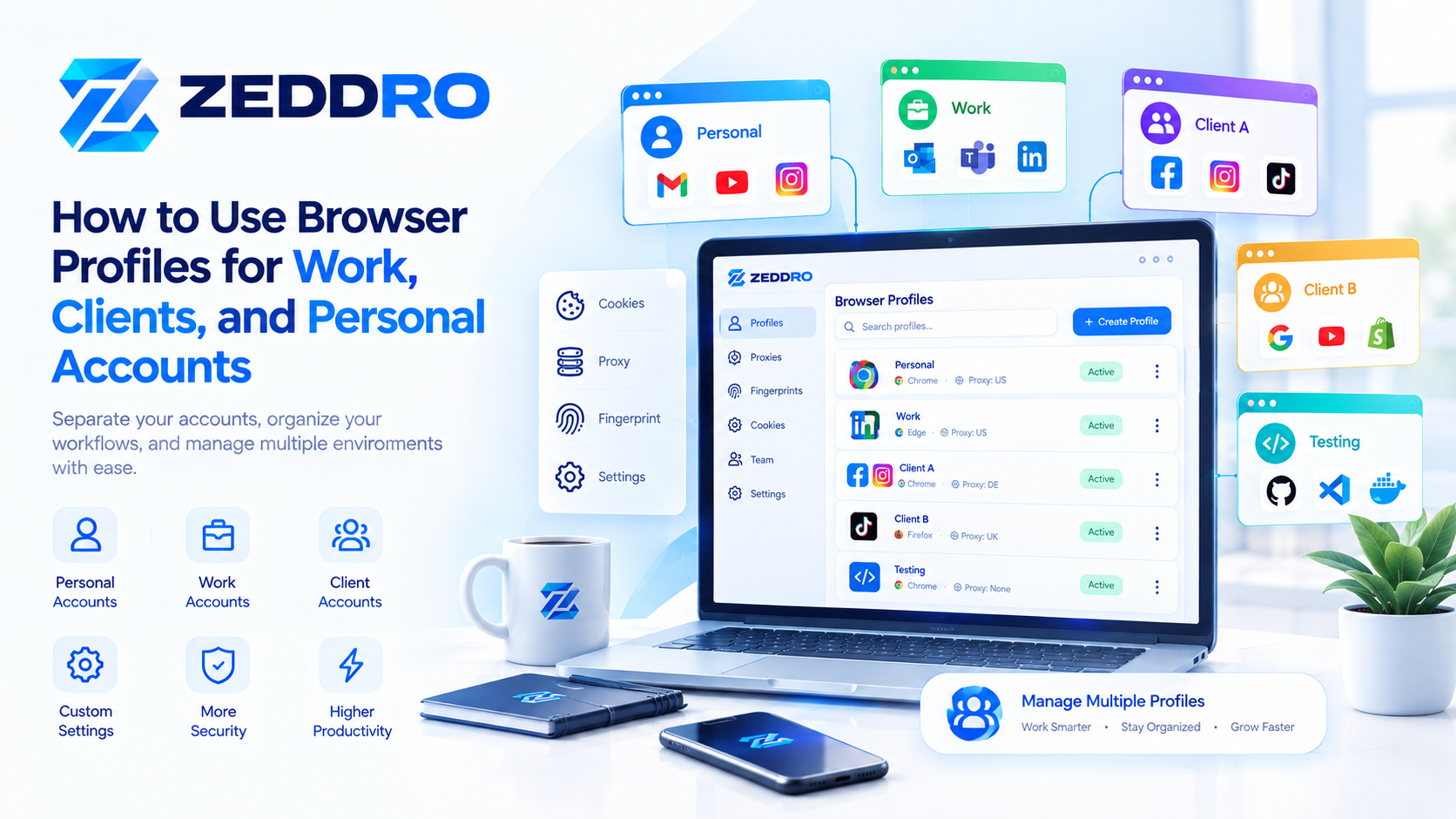
When people talk about browser profiles, they often focus on convenience: separate work and personal accounts, different bookmarks, or different browser settings.
But one of the most important concepts behind browser profiles is isolation.
Browser profile isolation means keeping the data and configuration associated with one browser environment separate from another.
For example, a work profile can maintain its own cookies, history, bookmarks, extensions, permissions, and other browser data without mixing them with a personal profile.
Google describes Chrome profiles as a way to keep information such as bookmarks, history, passwords, and other settings separate. Firefox similarly uses profiles to keep browsing data and configuration in separate environments.
However, profile isolation has limits.
A browser profile is not the same thing as a virtual machine, operating-system account, network identity, or completely independent device.
Understanding that distinction is essential when managing multiple accounts, clients, projects, or testing environments.
What Is Browser Profile Isolation?
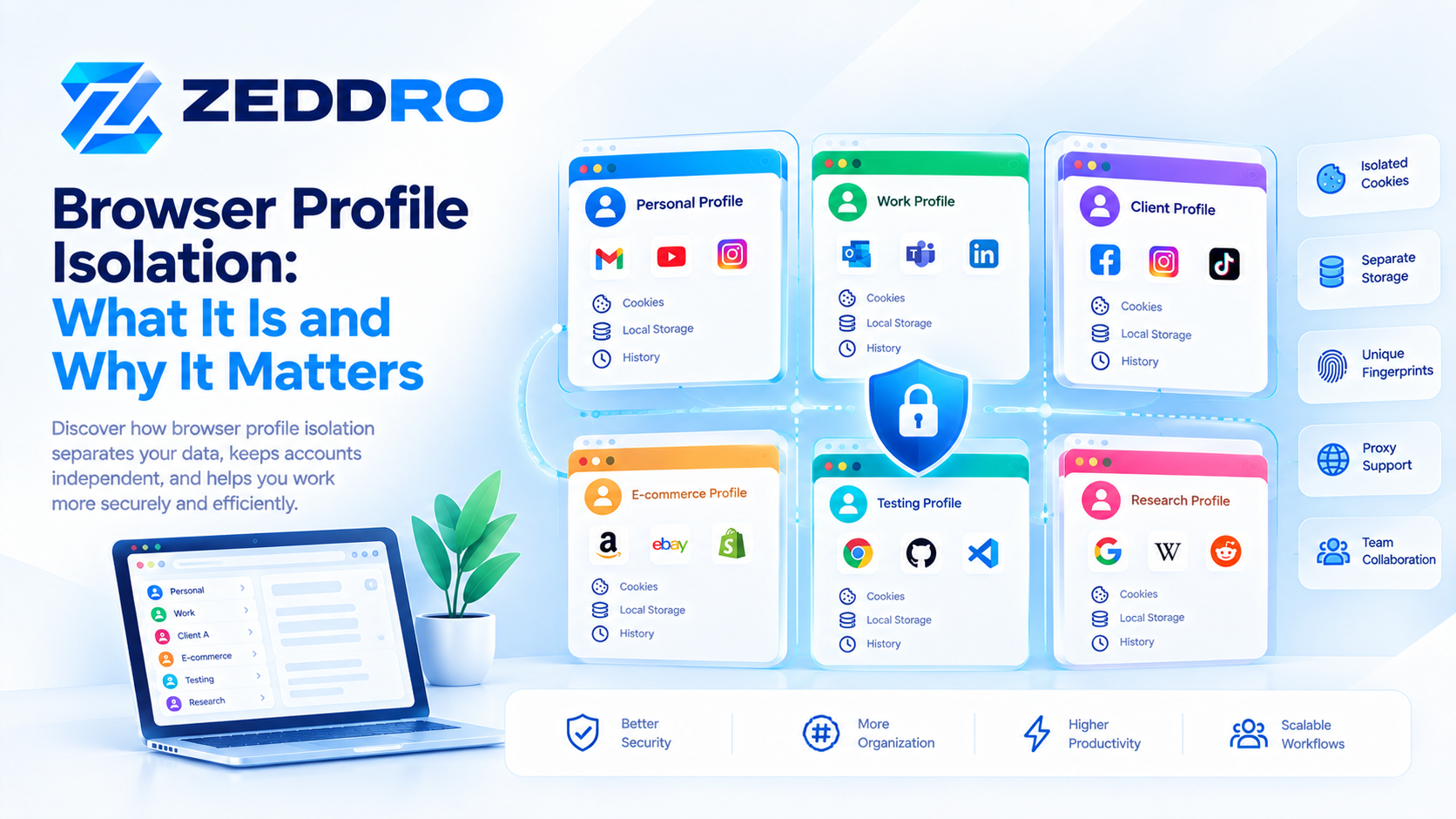
Browser profile isolation is the separation of browser data and configuration between different profiles.
Instead of storing everything in one shared browser environment, each profile maintains its own set of browser information.
A simplified model looks like this:
Browser
│
├── Profile A
│   ├── Cookies
│   ├── History
│   ├── Bookmarks
│   ├── Settings
│   ├── Extensions
│   └── Site Data
│
└── Profile B
    ├── Cookies
    ├── History
    ├── Bookmarks
    ├── Settings
    ├── Extensions
    └── Site Data
The exact implementation differs between browsers, but the underlying idea is the same:
Each profile maintains its own browser state.
Firefox's documentation explicitly describes profiles as separate sets of user information, while its newer profile-management documentation distinguishes profiles from containers: profiles separate broader browser data, whereas containers primarily separate cookies, logins, and site data within a profile.
Why Does Browser Profile Isolation Matter?
Without profile isolation, different activities can share the same browser environment.
Imagine using one browser profile for:
- Personal email
- Client accounts
- Social media
- E-commerce administration
- Development
- Testing
Over time, the environment can become difficult to manage.
You may end up with:
One Profile
│
├── Personal Cookies
├── Work Cookies
├── Client Sessions
├── Development Data
├── Testing Data
├── Mixed Extensions
└── Mixed Preferences
With separate profiles:
Personal Profile
      │
      └── Personal browser data

Work Profile
      │
      └── Work browser data

Client Profile
      │
      └── Client browser data

Testing Profile
      │
      └── Testing browser data
This creates a much clearer separation between workflows.
What Does a Browser Profile Actually Isolate?
The exact data varies by browser, but a profile can separate many categories of browser state.
Cookies
Cookies can contain information used to maintain sessions and remember website state.
A dedicated profile can therefore maintain a different cookie environment from another profile.
For example:
Profile A
→ Cookies A

Profile B
→ Cookies B
This is one of the most important aspects of profile isolation.
Local Storage and Other Site Data
Websites can use more than cookies to store information.
Modern browsers provide mechanisms such as Web Storage and IndexedDB for storing data locally.
Therefore, separating browser environments is broader than simply separating cookies.
A profile can maintain its own collection of website data.
Browsing History
Profiles can maintain separate browsing histories.
This is useful when:
- Work browsing should remain separate from personal browsing.
- Different users share a computer.
- Developers need a clean testing environment.
- Client work needs to remain organized.
Chrome specifically lists history among the information that can be separated between profiles.
Bookmarks
Bookmarks are another obvious example.
You might have:
Personal
├── News
├── Shopping
└── Travel

Work
├── Analytics
├── Advertising
└── Client Tools
Instead of maintaining one giant bookmark collection, each profile can have its own organization.
Extensions
Extensions can also be associated with individual browser environments.
This is particularly useful when different workflows require different browser tools.
For example:
Development Profile
→ Developer extensions

Marketing Profile
→ Marketing extensions

Testing Profile
→ Testing extensions
Firefox explicitly describes profiles as separating add-ons and other configuration between environments.
Browser Settings
Profiles can also maintain different settings and preferences.
For example:
- Homepage
- Startup behavior
- Permissions
- Appearance
- Search configuration
- Other browser preferences
This allows each profile to behave according to its intended purpose.
Browser Profile Isolation vs Account Isolation
These two concepts are related, but they are not identical.
An account is associated with a website or service.
A browser profile is an environment used to access websites.
For example:
Browser Profile A
        ↓
Google Account A
        ↓
Client A

Browser Profile B
        ↓
Google Account B
        ↓
Client B
The profile provides the environment in which the account operates.
This can make account separation easier, but it does not mean that the website only sees the profile itself.
Websites can observe additional information about the browser and network environment.
Browser Profile Isolation vs Cookies
These concepts are often confused.
A cookie is one type of stored browser data.
A profile is a larger environment that can contain many types of data.
Think of it like this:
Browser Profile
│
├── Cookies
├── Local Storage
├── IndexedDB
├── History
├── Bookmarks
├── Permissions
├── Extensions
└── Settings
Therefore:
Cookies are part of browser state. A browser profile is a container for a broader set of browser state and configuration.
This distinction becomes particularly important when moving or reproducing browser environments.
For a deeper explanation:
Browser Fingerprint vs Cookies: What's the Difference?
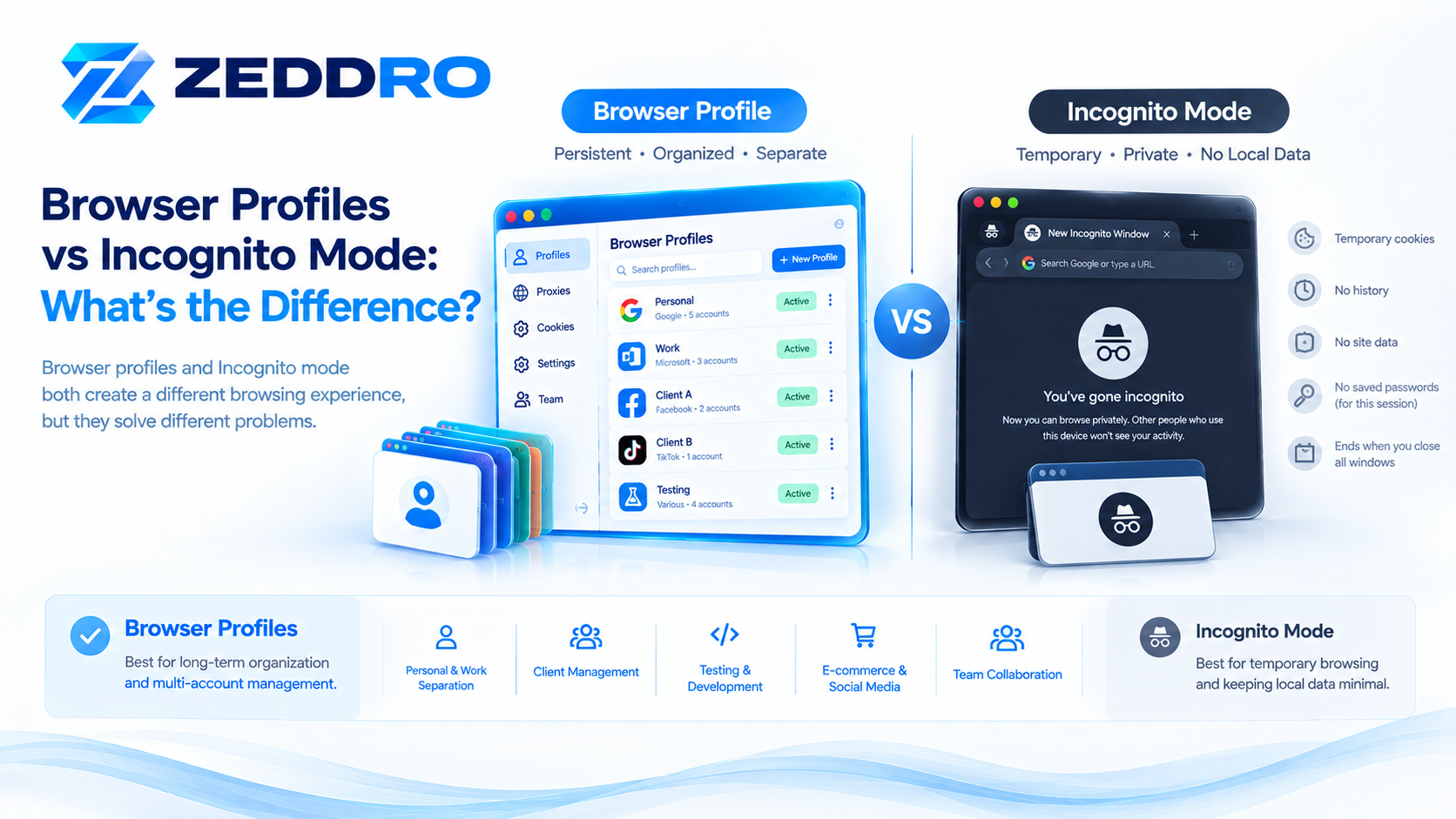
Browser Profile Isolation vs Incognito Mode
A private or incognito window is not simply another permanent browser profile.
Incognito/private browsing is designed for temporary browsing sessions.
A normal browser profile is persistent.
For example:
Normal Profile
→ Persistent browser environment

Incognito Window
→ Temporary private browsing session
Chrome's documentation describes Incognito as a private browsing mode, while profiles are designed to maintain separate browser information and settings.
If you need a persistent environment for a particular project or account, a dedicated profile is generally more appropriate.
Browser Profile Isolation vs Firefox Containers
Firefox provides another interesting comparison through Multi-Account Containers.
Mozilla explains that:
- Profiles separate broader browser data.
- Containers primarily separate cookies, logins, and site data within the same profile.
That makes containers useful for lighter-weight separation, while profiles provide a broader boundary around the browser environment.
Conceptually:
Profile
│
├── Cookies
├── Settings
├── Extensions
├── History
└── Other browser data
versus:
One Profile
│
├── Container A → Cookies / Logins
├── Container B → Cookies / Logins
└── Container C → Cookies / Logins
The appropriate choice depends on how much separation you actually need.
Browser Profile Isolation vs Operating-System Accounts
A browser profile and an operating-system account operate at different levels.
An operating-system account can separate:
- Files
- Applications
- User settings
- Credentials
- System permissions
A browser profile operates primarily inside the browser.
For example:
Operating System
│
├── User A
│   └── Browser
│       ├── Profile A
│       └── Profile B
│
└── User B
    └── Browser
        └── Profile C
This means browser profile isolation should not be treated as a replacement for OS-level security boundaries.
Browser Profile Isolation vs Virtual Machines
A virtual machine provides a much broader level of environment separation.
A VM can have its own:
- Operating system
- Applications
- Files
- Network configuration
- System settings
- Browser installation
A browser profile is considerably lighter.
Virtual Machine
├── Operating System
├── Applications
├── Files
├── Network
└── Browser
    └── Profile
Compared with:
Computer
└── Browser
    ├── Profile A
    └── Profile B
For everyday multi-account management, browser profiles are much lighter and faster to operate.
For full environment isolation, virtual machines provide a different level of separation.
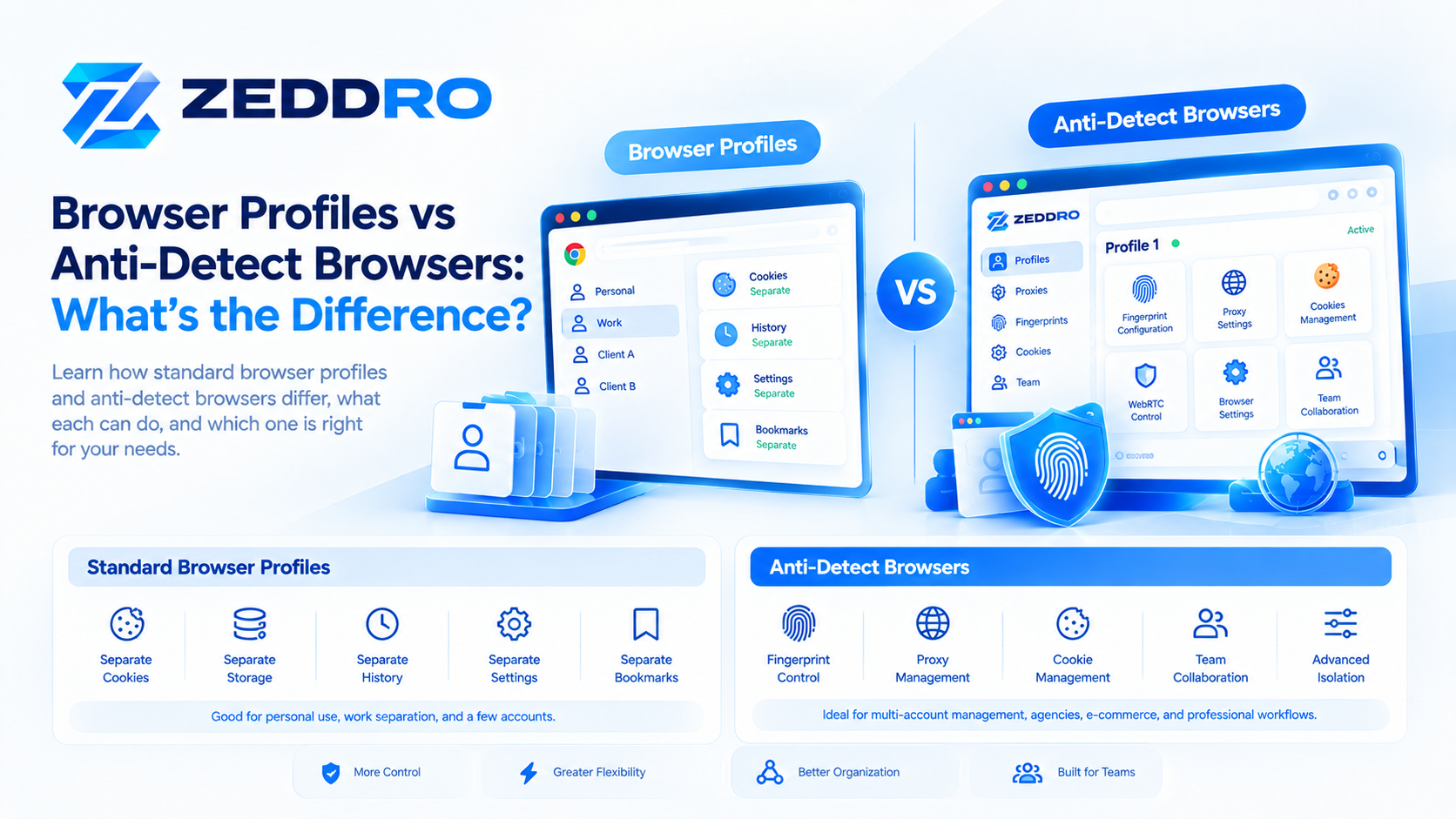
Does Browser Profile Isolation Change Your Fingerprint?
Not automatically.
This is one of the most important limitations to understand.
A standard browser profile primarily separates stored browser data and configuration.
Browser fingerprinting is a different concept.
A fingerprint can be built from observable characteristics of a browser and its underlying system, potentially including browser version, timezone, language, available fonts, display characteristics, and other browser/device signals.
The W3C also recognizes that exposing browser settings and characteristics can contribute to fingerprinting and related privacy risks.
Therefore:
Profile A ≠ automatically unique fingerprint
Profile B ≠ automatically unique fingerprint
Two profiles on the same computer may still share many underlying characteristics.
This is why profile isolation and fingerprint management should be considered separate concepts.
Why Fingerprint Consistency Still Matters
Once you move beyond basic browser profiles into environments where fingerprint characteristics can be configured, consistency becomes important.
A browser environment can expose multiple related signals:
User Agent
     +
Client Hints
     +
Screen
     +
WebGL
     +
Canvas
     +
Audio
     +
Language
     +
Time Zone
These signals do not exist independently.
A website can potentially combine browser and device characteristics to build a more detailed picture of an environment. MDN describes fingerprinting as the collection and combination of distinguishing browser and operating-system characteristics.
This is why changing one characteristic in isolation is not necessarily equivalent to creating a coherent browser environment.
For more information:
Browser Fingerprint Consistency: Why It Matters
Does Profile Isolation Protect Against Tracking?
Not necessarily.
Profile isolation is primarily a mechanism for separating browser state.
It should not be described as a complete anti-tracking or anonymity solution.
Websites can observe information outside the profile's stored data, including network-level information and browser characteristics.
MDN explains that browser fingerprinting can involve combining characteristics of the browser and operating system to distinguish environments.
Therefore:
Profile isolation reduces accidental data mixing, but it does not make a browser invisible.
This distinction is essential when discussing privacy and security.
Why Profile Isolation Is Useful for Agencies
Consider an agency managing several clients.
Without structured profile isolation:
Agency Browser
│
├── Client A
├── Client B
├── Client C
├── Internal Tools
└── Testing
Everything is potentially operating inside a shared browser environment.
With profiles:
Agency Workspace
│
├── Client A
│   ├── Ads
│   └── Social
│
├── Client B
│   ├── Ads
│   └── E-commerce
│
├── Client C
│   └── Social
│
└── Internal
    ├── Development
    └── Testing
The second model is easier to understand, audit, and maintain.
It also provides a clearer structure for team collaboration.
Profile Isolation for Developers
Developers can benefit from isolated profiles when testing websites.
For example:
Testing
│
├── Clean Browser
├── Logged-in User
├── Extension Enabled
├── Extension Disabled
└── Experimental
This allows developers to reproduce different browser states without constantly modifying their primary profile.
It can be particularly useful when debugging:
- Authentication
- Cookies
- Local storage
- Permissions
- Extensions
- Browser settings
- Website behavior
Profile Isolation for E-commerce
E-commerce teams can also use profiles to separate projects.
For example:
E-commerce
│
├── Store A
├── Store B
├── Store C
└── Research
Each environment can maintain its own bookmarks, sessions, settings, extensions, and site data.
This is useful when several stores or projects need to be managed from the same computer.
Profile Isolation for Social Media Teams
Social media teams often work across multiple brands.
Instead of putting everything into one browser environment:
One Profile
→ Brand A
→ Brand B
→ Brand C
→ Brand D
a more organized approach is:
Social Workspace
│
├── Brand A
├── Brand B
├── Brand C
└── Brand D
Each profile can then be associated with its intended project.
Again, this is about organization and separation, not a guarantee that websites cannot associate activity through other signals.
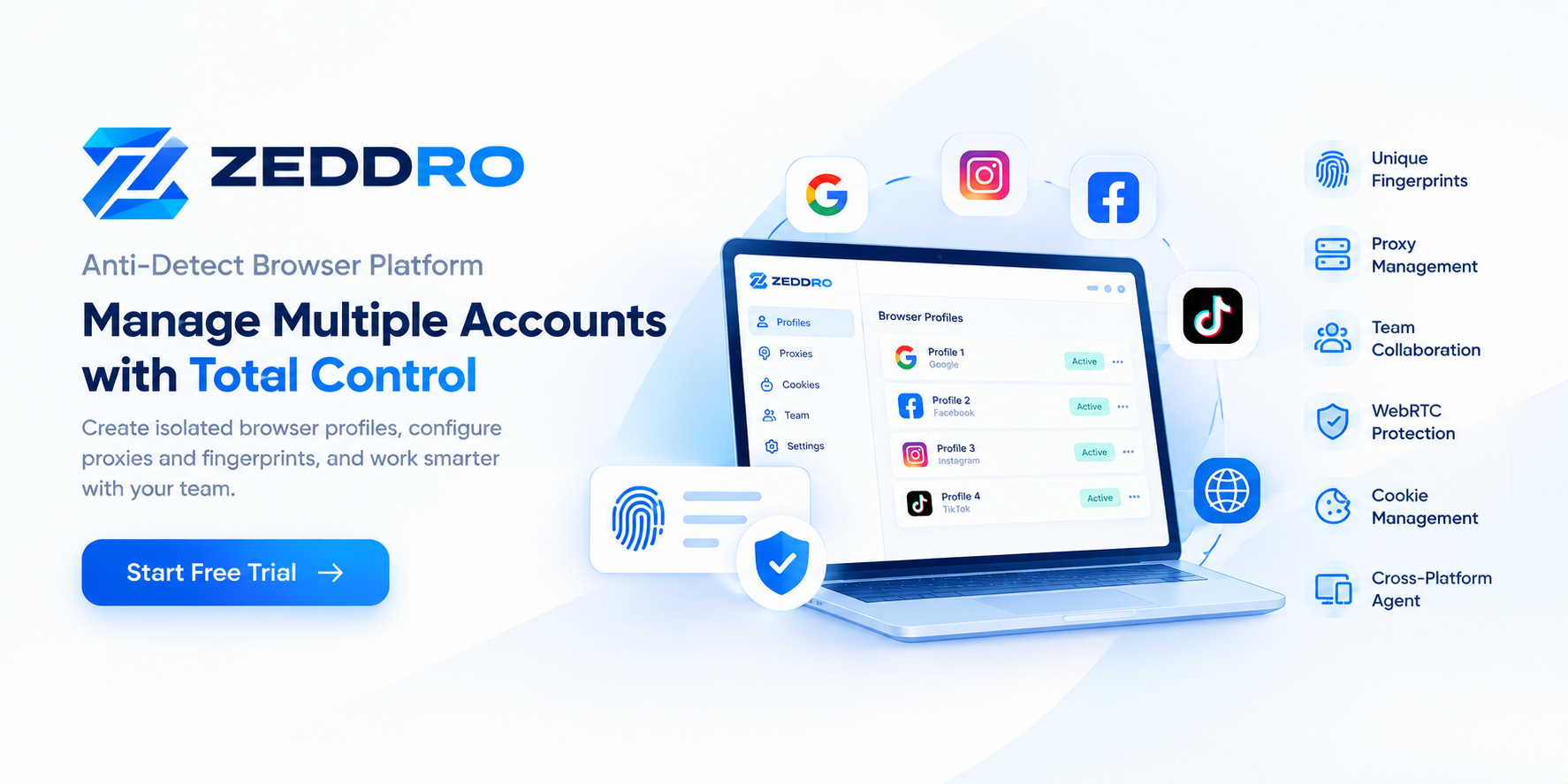
Profile Isolation in Zeddro
Zeddro takes the browser-profile concept further by treating profiles as managed browser environments.
A profile can be organized around several components:
Zeddro Profile
│
├── Browser Configuration
├── Fingerprint Configuration
├── Cookies
├── Session Data
├── Proxy
├── Browser Settings
└── Team Access
This approach is useful when simply separating browser history and cookies is not enough for a professional workflow.
Instead of managing dozens of independent browser installations or manually configuring each environment, a centralized profile-management layer can provide a more structured workflow.
What Browser Profile Isolation Does Not Do
It is equally important to understand the limitations.
Browser profile isolation does not automatically:
- Create a new physical device
- Create a new operating system
- Change your IP address
- Make you anonymous
- Guarantee privacy
- Guarantee that websites cannot correlate activity
- Automatically create a unique browser fingerprint
- Replace security controls at the operating-system level
This distinction prevents many common misunderstandings.
A profile is a browser-level isolation mechanism, not a complete digital identity.
How Strong Should Profile Isolation Be?
There is no single correct level.
It depends on the task.
Basic separation
For personal vs work browsing:
Chrome / Firefox
      ↓
Two Profiles
This may be completely sufficient.
Moderate separation
For several projects:
Profiles
+
Folders
+
Separate sessions
+
Controlled extensions
Advanced management
For larger professional workflows:
Centralized Profiles
+
Cookies
+
Proxy Management
+
Fingerprint Configuration
+
Permissions
+
Team Collaboration
The principle is simple:
Use the smallest level of isolation that actually solves the problem.
More isolation is not automatically better.
Best Practices for Browser Profile Isolation
1. Give each profile a clear purpose
Avoid creating profiles without a defined role.
2. Use descriptive names
Prefer:
Client A – Advertisingover:
Profile 173. Keep sessions separated
Avoid unnecessarily moving accounts between unrelated profiles.
4. Keep extensions intentional
Install only what the profile needs.
5. Organize profiles into folders
Group them by client, project, team, or function.
6. Document ownership
For team environments, identify who manages each profile.
7. Review inactive profiles
Archive profiles that are no longer actively used.
8. Protect profile data
Profiles may contain valuable cookies, sessions, passwords, and other sensitive browser information.
9. Understand the difference between isolation and anonymity
A separate profile does not automatically make the environment anonymous.
10. Keep fingerprint management conceptually separate
Profile data separation and browser fingerprint configuration are different layers.
A Simple Mental Model
The easiest way to understand browser profile isolation is to think of each profile as a separate workspace inside the browser.
                 BROWSER
                    │
       ┌────────────┼────────────┐
       │            │            │
    Profile A   Profile B   Profile C
       │            │            │
    Cookies       Cookies      Cookies
    History       History      History
    Settings      Settings     Settings
    Extensions    Extensions   Extensions
Each workspace has its own browser state.
But all of them may still operate on the same underlying computer and network.
That final point is crucial.
Browser Profile Isolation vs Full Environment Isolation
| Layer | Browser Profile | OS Account | Virtual Machine |
|---|---|---|---|
| Cookies | Separate | Separate | Separate |
| History | Separate | Separate | Separate |
| Extensions | Separate | Separate | Separate |
| Browser settings | Separate | Separate | Separate |
| Files | Shared OS | Separate | Separate |
| Applications | Shared | Shared/controlled | Separate |
| Operating system | Shared | Shared | Separate |
| Network | Usually shared | Usually shared | Configurable |
| Hardware | Shared | Shared | Underlying hardware shared |
| Management complexity | Low | Medium | High |
This comparison shows why browser profiles are attractive for many workflows.
They provide meaningful browser-level separation without the overhead of running an entirely separate operating system.
Frequently Asked Questions
What is browser profile isolation?
Browser profile isolation is the separation of browser data and configuration between different browser profiles.
What does a browser profile isolate?
Depending on the browser, profiles can separate cookies, browsing history, bookmarks, settings, extensions, passwords, permissions, and other browser data.
Are browser profiles completely isolated from each other?
At the browser-data level, profiles are designed to maintain separate environments. However, they still operate on the same underlying computer unless additional isolation mechanisms are used.
Does a browser profile have a separate IP address?
No. A browser profile does not automatically change the network connection or IP address.
Does a browser profile create a unique fingerprint?
No. Standard browser profiles primarily separate browser data and configuration. Fingerprinting is based on observable browser and system characteristics.
Are browser profiles more secure than Incognito?
They serve different purposes. Profiles provide persistent separation between browser environments, while Incognito is designed for temporary private browsing.
Are browser profiles useful for multiple accounts?
Yes. Separating accounts into dedicated profiles can make sessions, cookies, settings, and other browser data easier to manage.
When should I use a virtual machine instead?
A virtual machine makes more sense when you need broader operating-system-level separation rather than browser-level separation.
Key Takeaways
Browser profile isolation provides a practical way to separate browser environments without creating a completely separate computer.
The most important points are:
- A browser profile is a persistent browser environment.
- Profiles can separate cookies, history, settings, extensions, and other browser data.
- Profile isolation is broader than cookie separation alone.
- Firefox Containers provide a lighter form of site-data separation inside a profile.
- Browser profiles are different from OS accounts and virtual machines.
- A profile does not automatically change your IP address.
- A profile does not automatically create a unique fingerprint.
- Profile isolation does not guarantee anonymity.
- For professional workflows, profile organization becomes increasingly important as the number of environments grows.
Final Takeaway
Browser profile isolation is fundamentally about keeping browser environments organized and separated.
For a person with a personal account and a work account, that may be all they need.
For developers, agencies, e-commerce teams, and organizations managing many projects, profile isolation can become an important part of a broader browser-management strategy.
The key is understanding what a profile actually isolates—and what remains shared underneath it.
A browser profile can separate your browser state.
It does not automatically create a completely separate device, network identity, or digital identity.
That distinction is what makes browser-profile management easier to understand and much more useful in practice.
Related Zeddro Articles
- What Is a Browser Profile? How Browser Profiles Work
- Browser Profiles vs Anti-Detect Browsers: What's the Difference?
- How to Manage Multiple Browser Profiles Efficiently
- Browser Fingerprint Consistency: Why It Matters
- Browser Fingerprint vs Cookies: What's the Difference?
- Browser Fingerprint vs IP Address: What's the Difference?