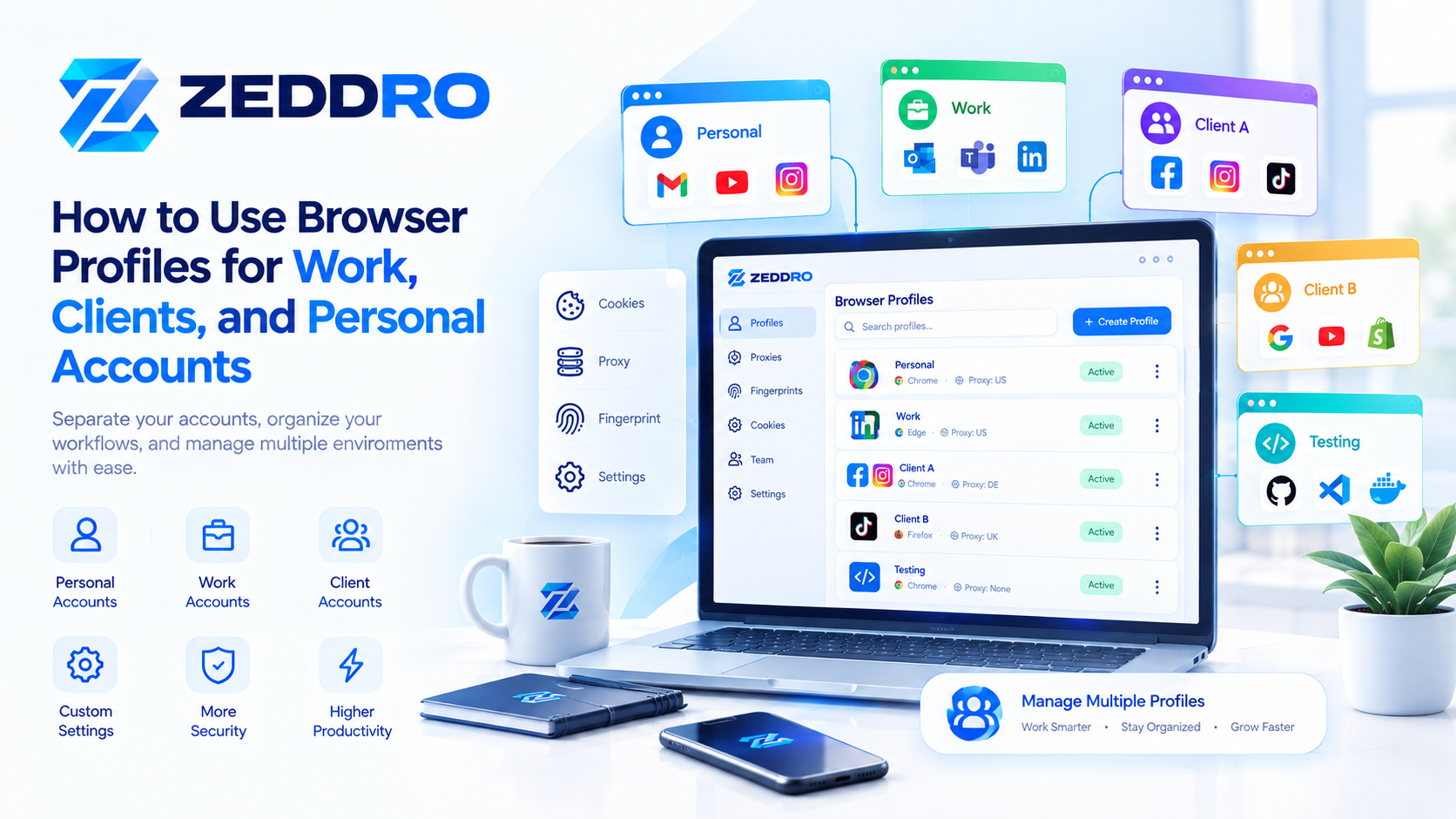
Managing several online accounts from one computer can become surprisingly difficult.
Browser tabs quickly become confusing, cookies get mixed between accounts, saved sessions become difficult to track, and it becomes easy to lose control of which account belongs to which project.
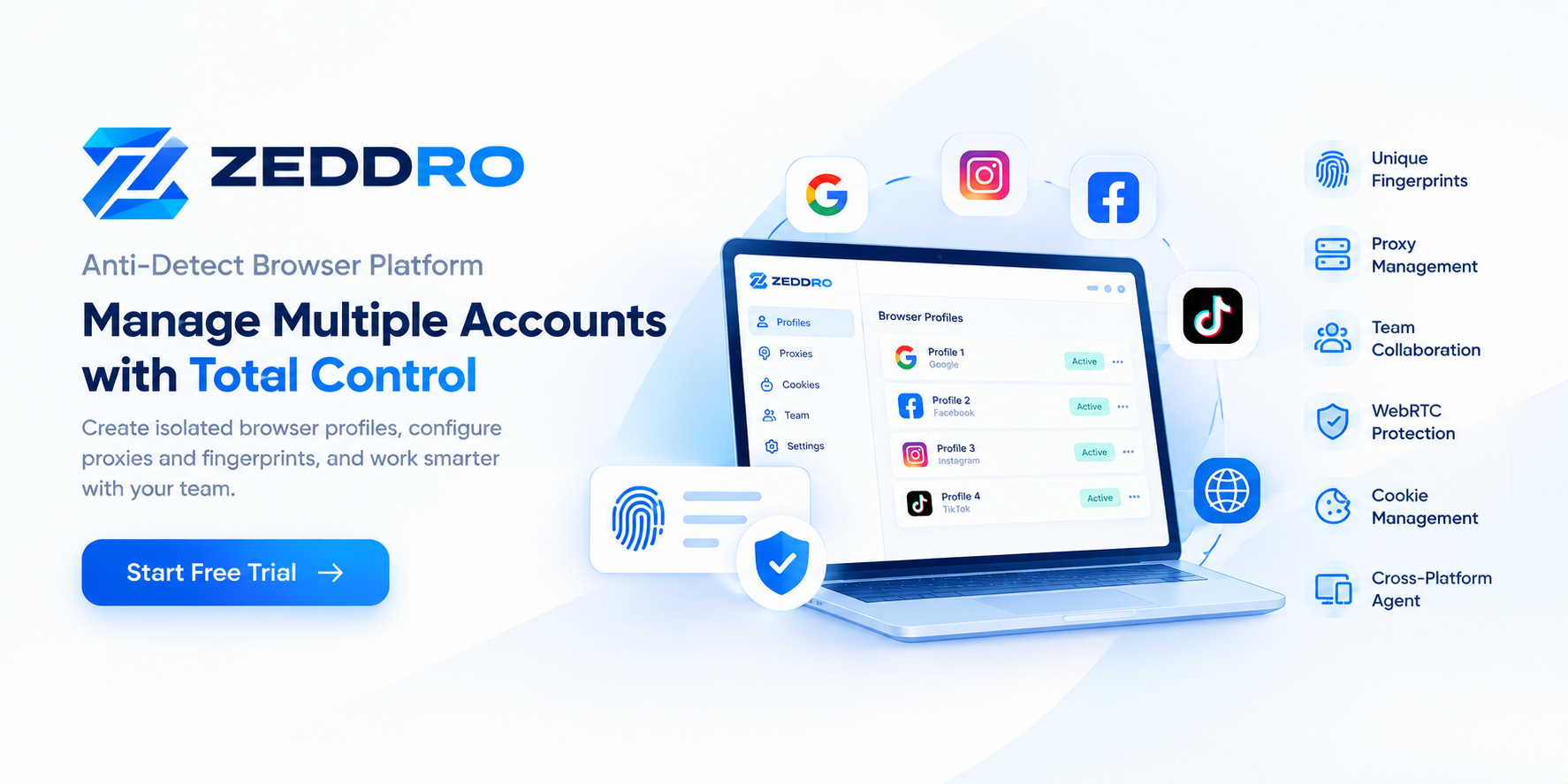
Browser profiles provide a practical way to separate these environments.
Instead of treating every account as another browser tab, you can create dedicated profiles with their own cookies, storage, browsing history, extensions, settings, and other browser data.
For a small number of accounts, the profile systems built into browsers such as Chrome and Firefox may be enough. For larger workflows, specialized browser-profile platforms can add centralized management, proxy assignment, fingerprint configuration, team permissions, and other controls.
This guide explains how to create and organize multiple browser profiles efficiently, how to structure them as your workflow grows, and what to consider when managing dozens or hundreds of profiles.
What Is a Browser Profile?
A browser profile is a separate browser environment that maintains its own user data.
Depending on the browser, this can include:
- Cookies
- Browsing history
- Bookmarks
- Saved settings
- Permissions
- Extensions
- Local storage
- Other website data
- Saved credentials or passwords
For example, Chrome allows users to maintain separate profiles for different purposes, while Firefox profiles can contain separate bookmarks, passwords, settings, and browsing data.
A simple structure could look like this:
Browser
│
├── Personal
├── Work
├── Client A
├── Client B
└── Testing
Each profile can then maintain its own browser state.
That separation is the foundation of effective multi-account browser management.
Why Use Multiple Browser Profiles?
The most common reason is separation.
Without profiles, users often try to manage everything inside one browser environment:
One Browser
    ↓
Many Tabs
    ↓
Many Accounts
    ↓
Mixed Cookies
    ↓
Confusing Sessions
Profiles create a more structured model:
Browser
   │
   ├── Profile A → Account A
   ├── Profile B → Account B
   ├── Profile C → Account C
   └── Profile D → Account D
This can make everyday work significantly easier.
Common use cases include:
- Separating personal and professional browsing
- Managing client accounts
- Testing websites with different configurations
- Managing e-commerce projects
- Organizing social media work
- Separating development and production environments
- Working with multiple projects
- Maintaining different research environments
Mozilla specifically describes multiple Firefox profiles as useful for separating work and personal browsing and for testing different setups.
Browser Profile vs Browser Tab
One of the most important concepts to understand is that a tab is not a profile.
Opening multiple tabs inside the same profile does not create independent browser environments.
For example:
Profile: Work

├── Gmail
├── Facebook
├── LinkedIn
└── Client Dashboard
All of these tabs belong to the same browser profile and therefore share the profile's relevant browser state.
A different profile creates another environment:
Profile: Work
    └── Work-related browser state

Profile: Client A
    └── Client A browser state

Profile: Client B
    └── Client B browser state
This distinction becomes particularly important when multiple accounts need to remain separated.
Step 1: Decide What Each Profile Represents
Before creating dozens of profiles, define what a profile actually represents in your workflow.
This is one of the biggest differences between organized profile management and simply creating many browser profiles.
A profile could represent:
- A person
- A client
- A company
- A project
- A website
- A testing environment
- A specific operational workflow
For example, an agency might organize profiles like this:
Agency
│
├── Client-A
│   ├── Google Ads
│   ├── Meta
│   └── Analytics
│
├── Client-B
│   ├── Google Ads
│   ├── Meta
│   └── Analytics
│
└── Internal
    ├── Finance
    ├── Development
    └── Testing
The exact structure depends on the organization.
The important principle is:
One profile should have a clear purpose.
Step 2: Create a Consistent Naming System
Once you have more than a few profiles, naming becomes extremely important.
Avoid names such as:
Profile 1
Profile 2
Profile 3
Profile 4
These names provide almost no useful information.
Instead, use a predictable naming convention.
For example:
CLIENT-A | ADS
CLIENT-A | SOCIAL
CLIENT-B | ADS
CLIENT-B | SOCIAL
INTERNAL | DEV
INTERNAL | TEST
For larger organizations, you can include additional information:
CLIENT-A | META | US
CLIENT-A | GOOGLE | US
CLIENT-B | SHOPIFY | EU
CLIENT-C | SOCIAL | UK
The goal is not to create complicated names.
The goal is to make the profile immediately understandable.
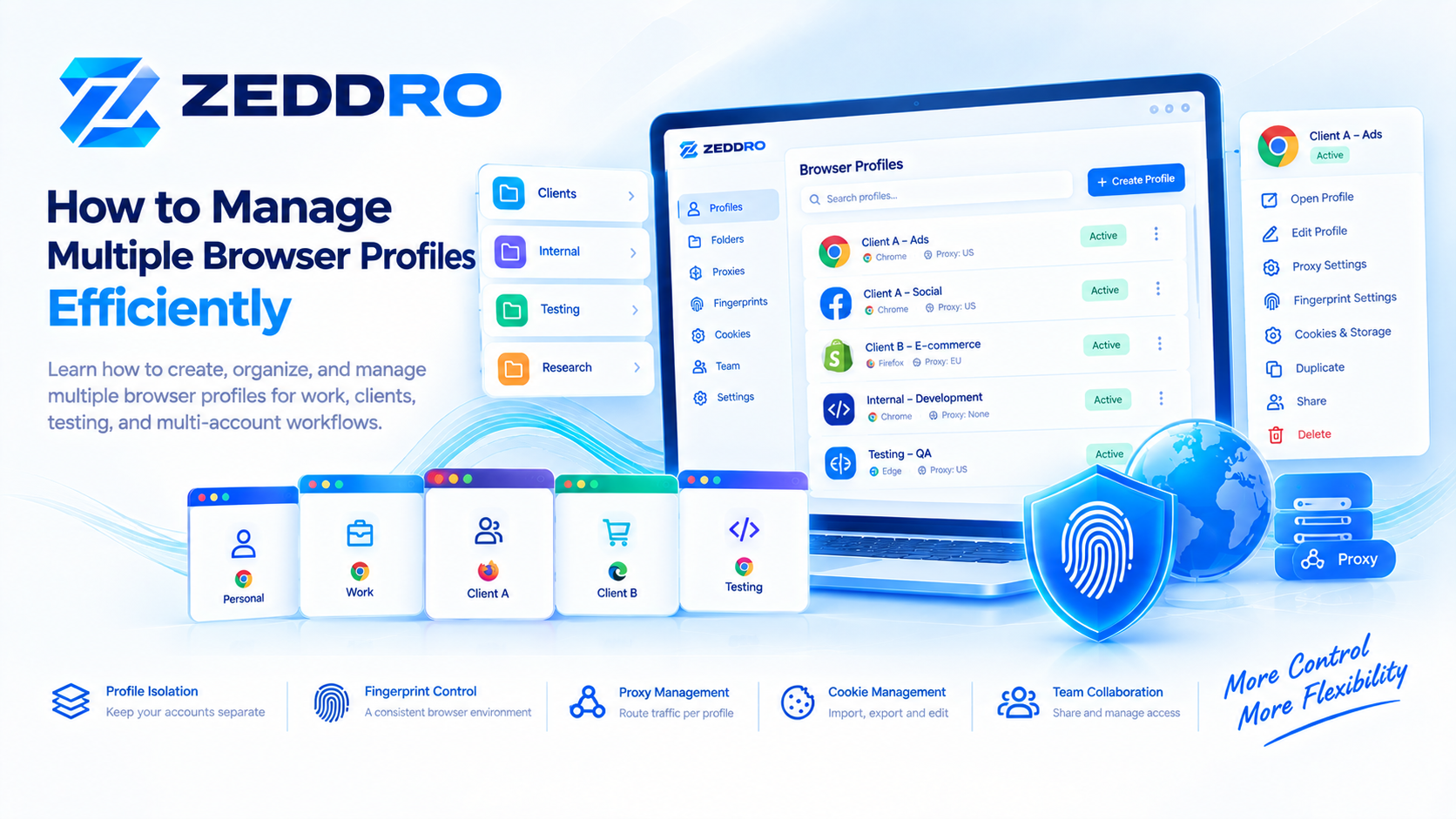
Step 3: Organize Profiles Into Folders
When the number of profiles increases, folders become more useful than a long flat list.
For example:
Clients
│
├── Client A
├── Client B
└── Client C

Internal
│
├── Development
├── Testing
└── Administration

Projects
│
├── Project A
├── Project B
└── Project C
A folder structure makes it easier to:
- Find profiles
- Assign permissions
- Understand ownership
- Move profiles between workflows
- Reduce mistakes
- Manage teams
For agencies, this can be particularly valuable because profiles can be organized around clients rather than individual accounts.
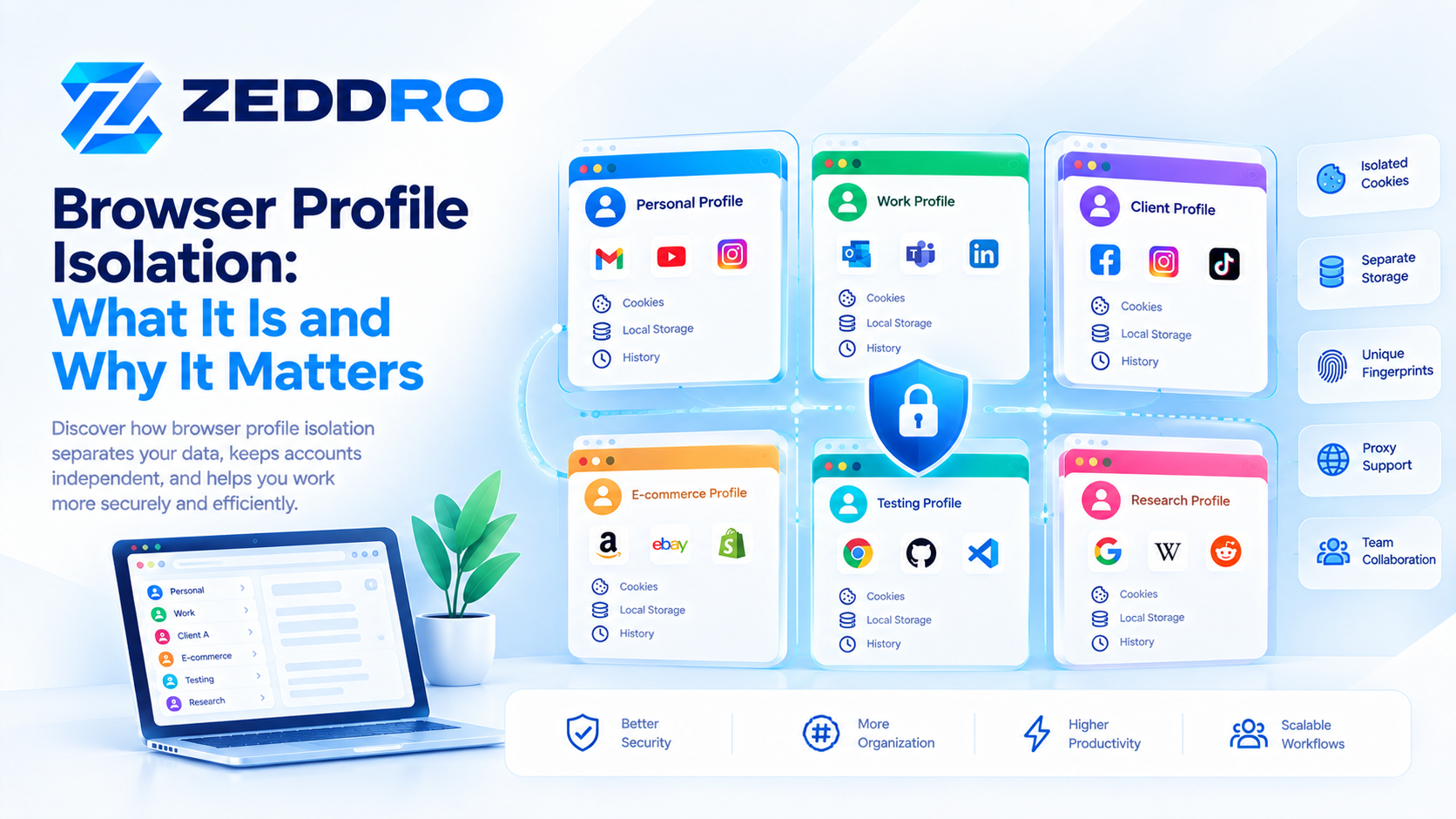
Step 4: Keep Cookies and Sessions With the Correct Profile
Cookies are an important part of browser state.
A website can use cookies to remember information between requests and maintain a user's session. Modern browsers also provide other storage mechanisms, including localStorage, sessionStorage, and IndexedDB.
This means that browser profiles are not simply different visual configurations.
They can represent genuinely different stored browser environments.
For example:
Profile A
├── Cookies A
├── Local Storage A
├── History A
└── Settings A

Profile B
├── Cookies B
├── Local Storage B
├── History B
└── Settings B
Keeping these environments separate reduces accidental session mixing.
Good practice
If an account belongs to a specific project, keep its session inside the corresponding profile.
Avoid constantly moving the same account between unrelated profiles.
Step 5: Use Clear Profile Ownership
For teams, every profile should have an identifiable owner or purpose.
A simple structure might be:
| Profile | Purpose | Owner |
|---|---|---|
| Client A – Ads | Advertising | Marketing |
| Client A – Store | E-commerce | E-commerce |
| Client B – Social | Social media | Social Team |
| Internal – Dev | Development | Development |
| Internal – Testing | QA | QA |
This becomes increasingly important as the number of profiles grows.
A profile that nobody knows how to classify becomes a future management problem.
Step 6: Keep Extensions Under Control
Extensions can be useful, but installing every extension into every profile is rarely a good idea.
For example:
Development profile
Developer Tools
API testing tools
Debugging extensions
Marketing profile
Analytics tools
SEO tools
Productivity tools
Personal profile
Password manager
Productivity tools
Privacy extensions
Keeping extensions relevant to the purpose of each profile can improve organization and reduce unnecessary complexity.
It can also make troubleshooting easier.
If every profile contains a different collection of extensions, diagnosing a browser problem becomes more difficult.
Step 7: Separate Browser Configuration From Profile Data
A useful mental model is to divide your browser environment into two layers.
Layer 1 — Stored browser state
This can include:
- Cookies
- Local storage
- History
- Bookmarks
- Permissions
- Extensions
- Preferences
Layer 2 — Browser environment characteristics
Depending on the browser or specialized platform, this may include characteristics such as:
- User agent
- Screen configuration
- Language
- Time zone
- Graphics characteristics
- Browser APIs
- Other observable browser properties
This distinction matters because a standard browser profile does not automatically create a completely different browser fingerprint.
A profile primarily separates browser data and configuration.
Browser fingerprinting is a separate concept involving observable characteristics of the browser and device. The W3C notes that exposing browser settings and characteristics can contribute to fingerprinting and related privacy risks.
For a deeper explanation, see our guide:
Browser Fingerprint Consistency: Why It Matters
Step 8: Decide When Proxies Belong to Profiles
For workflows that require different network environments, it can be useful to associate a proxy configuration with a specific profile.
Conceptually:
Profile A
   ↓
Proxy A

Profile B
   ↓
Proxy B

Profile C
   ↓
Proxy C
This creates a simple operational relationship between a browser environment and its network configuration.
However, a proxy changes the network endpoint, not the entire browser environment.
As explained in our previous article, an IP address and browser fingerprint are different types of signals.
Related: Browser Fingerprint vs IP Address: What's the Difference?
Changing an IP address does not automatically change the browser's other observable characteristics.
Step 9: Maintain Fingerprint Consistency
If you're using a platform that provides control over browser fingerprint characteristics, consistency becomes an important consideration.
A browser environment can expose multiple signals.
For example:
User Agent
      +
Client Hints
      +
Screen Information
      +
WebGL
      +
Canvas
      +
Audio
      +
Language
      +
Time Zone
      ↓
Browser Environment
The important concept is not simply changing individual values.
It is maintaining a coherent environment.
For example, modifying one browser characteristic while leaving related characteristics inconsistent can create a browser configuration that does not naturally fit together.
Our article on fingerprint consistency explores this in greater detail:
Browser Fingerprint Consistency: Why It Matters
Step 10: Create a Profile Lifecycle
A professional profile-management system should have a lifecycle.
Instead of creating profiles permanently and forgetting about them, consider:
Create
   ↓
Configure
   ↓
Use
   ↓
Maintain
   ↓
Archive
   ↓
Delete
Create
Define the profile's purpose and owner.
Configure
Set its browser preferences, extensions, storage, and other required settings.
Use
Keep the profile dedicated to its intended workflow.
Maintain
Review outdated extensions, permissions, sessions, and configuration.
Archive
When a project is inactive but may return, preserve it appropriately.
Delete
Remove profiles that are no longer required and contain no information that needs to be retained.
This approach becomes increasingly valuable when managing dozens or hundreds of profiles.
Managing 5 Profiles vs 100 Profiles
The management strategy changes significantly as the number of profiles increases.
1–5 profiles
A normal browser profile system is often sufficient.
Example:
Personal
Work
Client A
Client B
Testing
You can usually manage these manually.
5–20 profiles
Organization starts becoming more important.
Consider:
- Naming conventions
- Folders
- Consistent extensions
- Profile ownership
- Documentation
- Backup procedures
At this point, a profile-management dashboard can become useful.
20–100+ profiles
Manual management becomes increasingly difficult.
You may need:
- Centralized profile management
- Search and filtering
- Folders
- Profile tagging
- Proxy management
- Fingerprint configuration
- Cookie/session management
- Team permissions
- Activity tracking
- Profile duplication
- Profile lifecycle controls
This is where specialized browser-profile platforms can provide significantly more structure than manually managing browser profiles.
How to Organize 100 Browser Profiles
For larger environments, avoid treating profiles as one giant list.
A better model is:
Workspace
│
├── Client A
│   ├── Advertising
│   ├── Social
│   └── E-commerce
│
├── Client B
│   ├── Advertising
│   └── Social
│
├── Internal
│   ├── Development
│   ├── Testing
│   └── Administration
│
└── Archived
    ├── Client X
    └── Client Y
Then apply consistent metadata:
Profile Name
Owner
Project
Status
Proxy
Browser
Operating System
Created
Last Used
This transforms profile management from a browser task into an operational system.
Browser Profiles for Agencies
Agencies are one of the clearest examples of where profile organization becomes valuable.
Suppose an agency manages 15 clients.
Without a structured system:
Client accounts
     ↓
Many browser tabs
     ↓
Mixed sessions
     ↓
Harder collaboration
With dedicated profiles:
Agency Workspace
      │
      ├── Client A
      ├── Client B
      ├── Client C
      ├── Client D
      └── Client E
Each client can have a controlled environment.
Team members can then work with the appropriate profiles without constantly switching between unrelated sessions.
For larger teams, role-based access becomes another important consideration.
Browser Profiles for Testing
Multiple profiles are also useful outside account management.
Developers can create separate environments for:
- Testing browser settings
- Testing extensions
- Testing website sessions
- Debugging authentication
- Reproducing user environments
- Testing storage behavior
- Comparing configurations
For example:
Testing
├── Clean
├── Logged In
├── Extension A
├── Extension B
└── Experimental
This allows developers to reproduce specific browser states without constantly modifying their primary environment.
Browser Profiles and Cookies Are Not the Same Thing
A common misconception is that a profile is simply a collection of cookies.
It is much broader.
A profile can contain many types of browser data and configuration.
Cookies are only one component.
For example:
Browser Profile
│
├── Cookies
├── Local Storage
├── History
├── Bookmarks
├── Permissions
├── Extensions
├── Preferences
└── Other browser data
MDN notes that modern browsers use multiple storage mechanisms in addition to cookies, including Web Storage and IndexedDB.
This is why simply importing a cookie set does not necessarily reproduce an entire browser profile.
For more detail:
Browser Fingerprint vs Cookies: What's the Difference?
Standard Browser Profiles vs Specialized Profile Platforms
A normal browser may be enough when you need only a few isolated environments.
For example:
Personal
Work
Testing
But professional workflows may require additional capabilities.
| Capability | Standard Browser Profiles | Specialized Platform |
|---|---|---|
| Separate browser data | ✓ | ✓ |
| Multiple profiles | ✓ | ✓ |
| Cookies/session separation | ✓ | ✓ |
| Central profile dashboard | Limited | ✓ |
| Proxy management | Limited | ✓ |
| Fingerprint configuration | Limited | ✓ |
| Team permissions | Limited | ✓ |
| Profile sharing | Limited | ✓ |
| Centralized organization | Limited | ✓ |
| Large-scale management | Limited | ✓ |
The right choice depends on the size and complexity of the workflow.
How Zeddro Fits Into Multi-Profile Management
Zeddro is designed around the idea that browser profiles should be managed as organized, isolated work environments, rather than simply as collections of tabs.
A Zeddro profile can combine multiple management layers:
Zeddro Profile
│
├── Browser Environment
├── Fingerprint Configuration
├── Proxy
├── Cookies
├── Session Data
├── Browser Settings
└── Access Permissions
This allows users to manage profiles from a centralized interface rather than treating every browser environment as an independent manual setup.
For teams, profile organization can also be combined with:
- Role-based permissions
- Profile sharing
- Folder organization
- Activity tracking
- Proxy assignment
- Cookie management
- Cross-platform desktop access
The goal is not simply to create more browser profiles.
The goal is to make a large number of browser environments manageable.
Best Practices for Managing Multiple Browser Profiles
If you're managing more than a few profiles, the following rules can prevent many common problems.
1. Give every profile a purpose
Don't create profiles without knowing why they exist.
2. Use consistent names
Make profiles understandable at a glance.
3. Organize profiles into folders
Group them by client, project, team, or function.
4. Keep sessions separated
Don't casually move accounts between unrelated environments.
5. Limit unnecessary extensions
Use only the extensions relevant to the profile.
6. Document important configurations
For larger teams, record ownership and purpose.
7. Review inactive profiles
Archive or remove profiles that are no longer required.
8. Protect sensitive browser data
Profiles can contain valuable sessions, credentials, and other private information.
9. Keep environments consistent
If you're using fingerprint-management capabilities, avoid arbitrary combinations of browser characteristics.
10. Scale your tooling with your workflow
Five profiles and 500 profiles are fundamentally different management problems.
Common Mistakes When Managing Multiple Profiles
Using generic names
Profile 1
Profile 2
Profile 3
This quickly becomes difficult to manage.
Using one profile for everything
This defeats much of the purpose of profile separation.
Installing different extensions randomly
This creates unnecessary configuration differences and makes troubleshooting harder.
Mixing unrelated accounts
A profile should have a clear operational purpose.
Forgetting profile ownership
In a team environment, nobody should have to guess who is responsible for a profile.
Creating profiles without a lifecycle
Unused profiles accumulate over time and become difficult to audit.
How Many Browser Profiles Should You Create?
There is no universal number.
The correct number depends on what you are trying to separate.
A useful rule is:
Create a new profile when the browser state, configuration, ownership, or workflow needs to remain meaningfully separate.
For example:
If two activities share the same environment and browser state, they may not need separate profiles.
If they have different ownership, sessions, configurations, or operational requirements, separate profiles may make more sense.
The objective should be meaningful isolation, not simply creating as many profiles as possible.
Do More Browser Profiles Mean Better Privacy?
Not necessarily.
A profile can separate stored browser data, but it does not automatically make a user anonymous or invisible online.
Websites can observe many different categories of information, including network information, browser characteristics, stored state, and other signals.
The W3C specifically recognizes that exposing browser settings and characteristics can create fingerprinting-related privacy risks.
Therefore:
Browser profile isolation ≠ anonymity.
A profile is primarily an organizational and isolation mechanism.
Additional privacy properties depend on the browser, network configuration, website behavior, and many other factors.
A Practical Multi-Profile Workflow
For a professional workflow, you can use the following process:
1. Define the project
        ↓
2. Create the profile
        ↓
3. Give it a clear name
        ↓
4. Place it in the correct folder
        ↓
5. Configure browser settings
        ↓
6. Assign required extensions
        ↓
7. Configure network settings if required
        ↓
8. Establish the correct session
        ↓
9. Assign ownership
        ↓
10. Use and maintain the profile
        ↓
11. Archive when inactive
This simple workflow prevents profile management from becoming chaotic as the number of environments grows.
Key Takeaways
Managing multiple browser profiles effectively is less about creating profiles and more about building a consistent system around them.
The most important principles are:
- Give every profile a clear purpose.
- Use consistent naming.
- Organize profiles into folders.
- Keep cookies and stored browser data separated.
- Control extensions and settings.
- Document profile ownership.
- Consider network configuration separately from browser identity.
- Maintain consistency between browser characteristics.
- Create a lifecycle for inactive profiles.
- Use specialized management software when the workflow becomes too large for manual management.
For a handful of profiles, Chrome or Firefox may be enough.
For larger professional workflows, a centralized platform can provide the organization, profile controls, proxy management, fingerprint configuration, and collaboration features required to manage many browser environments efficiently.
Frequently Asked Questions
What is the easiest way to manage multiple browser profiles?
Start with a clear naming convention, folders, and a defined purpose for each profile. For larger numbers of profiles, centralized profile-management software can make organization considerably easier.
How many browser profiles can I have?
The practical limit depends on the browser, operating system, available memory, storage, and how many profiles are active simultaneously. There is no single number that is optimal for every system.
Do browser profiles have separate cookies?
Yes. Browser profiles are designed to maintain separate browser data, including cookies and other stored information.
Can I use multiple browser profiles at the same time?
Yes. Modern browsers can allow multiple profiles to be used separately, although resource consumption increases as more browser instances and tabs are active.
Does a browser profile change my fingerprint?
A standard browser profile does not automatically mean a completely different fingerprint. Browser profiles primarily separate browser data and configuration. Fingerprint characteristics are a separate concept.
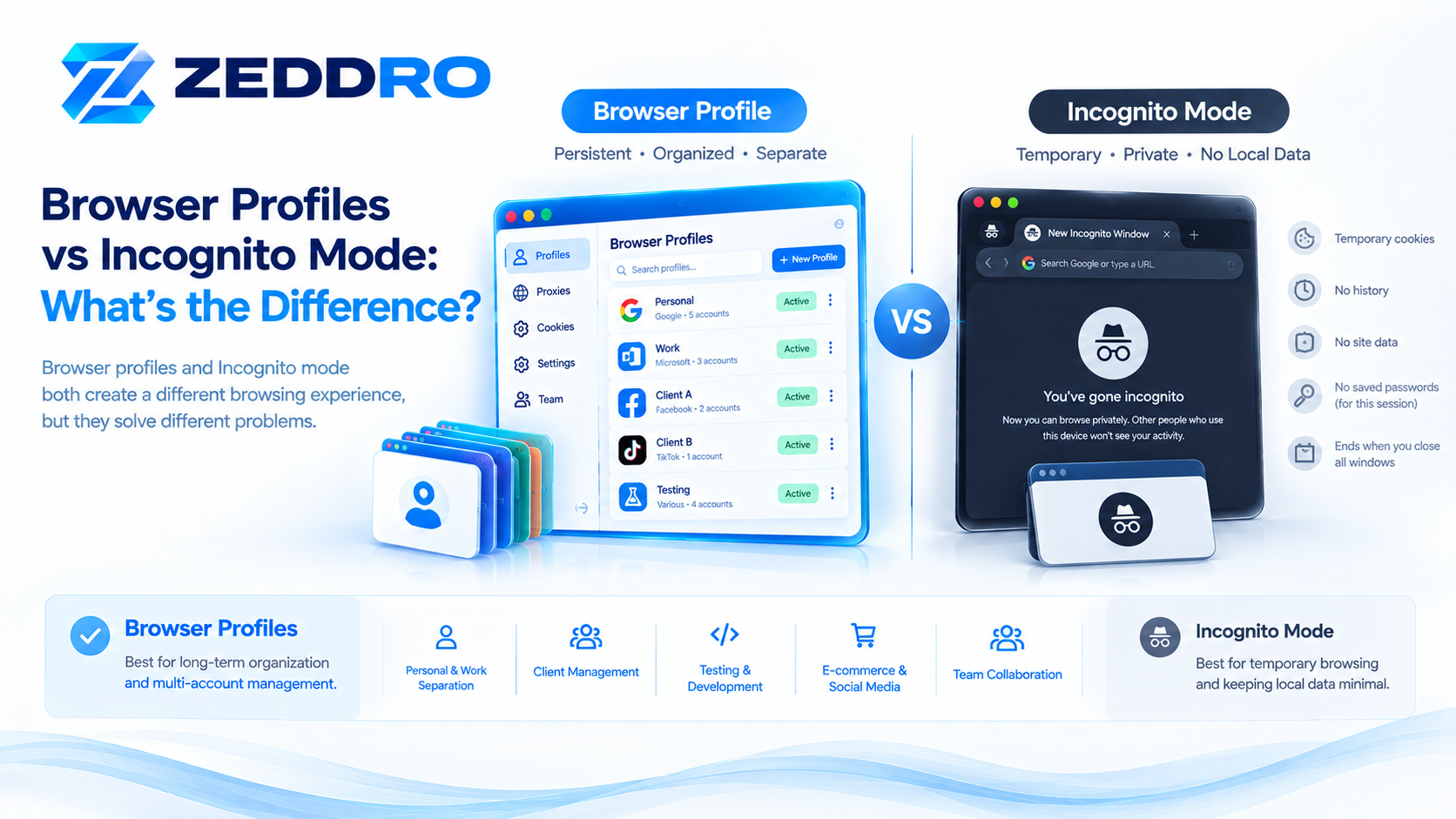
Are browser profiles the same as incognito windows?
No.
Incognito/private browsing is designed primarily for temporary browsing sessions. A normal browser profile is a persistent environment that can retain its own browser data and settings.
When should I use a specialized browser-profile platform?
It becomes more useful when you need to manage many profiles, organize them by projects or clients, assign proxies, control browser environments, collaborate with a team, or manage profiles from a centralized interface.
Final Takeaway
Effective browser-profile management is an organizational problem as much as a technical one.
Creating a separate profile is easy.
Managing 20, 50, or 100 profiles efficiently requires a system.
Clear naming, folder structures, profile ownership, session separation, consistent configuration, and a defined lifecycle can transform a collection of browser profiles into a manageable professional workflow.
And when the number of environments grows beyond what a standard browser can comfortably organize, specialized platforms such as Zeddro can provide a centralized layer for managing profiles, browser environments, proxies, cookies, and team workflows.